Sorry we are facing some issue at our end
Windows Firewall, Security, or third-party antivirus may block Vyapar TaxOne. Learn how to unblock the app in your system settings for smooth operation.
Sorry We Are Facing Some Issues on Our End
When this type of error occurs during login to the Vyapar TaxOne application:
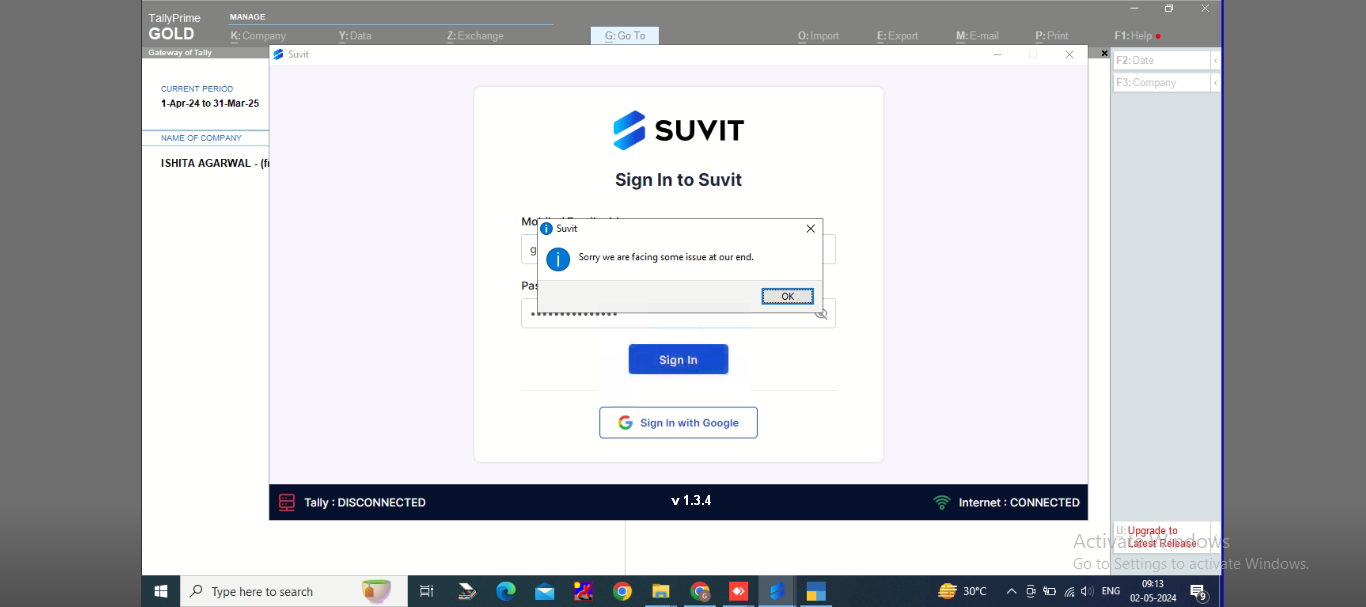
- Sometimes, Windows Firewall or Windows Security and any installed third-party antivirus block the Vyapar TaxOne application. Unblock the app in your security or firewall networks.
- If you have installed third-party antivirus (e.g., Quick Heal Antivirus, Kaspersky Antivirus, NPAV Total Security, etc.), you need to add the Vyapar TaxOne application to the exclusive rules in the antivirus settings.
Kindly Follow These Steps:
1. Allow Vyapar TaxOne Through Windows Firewall
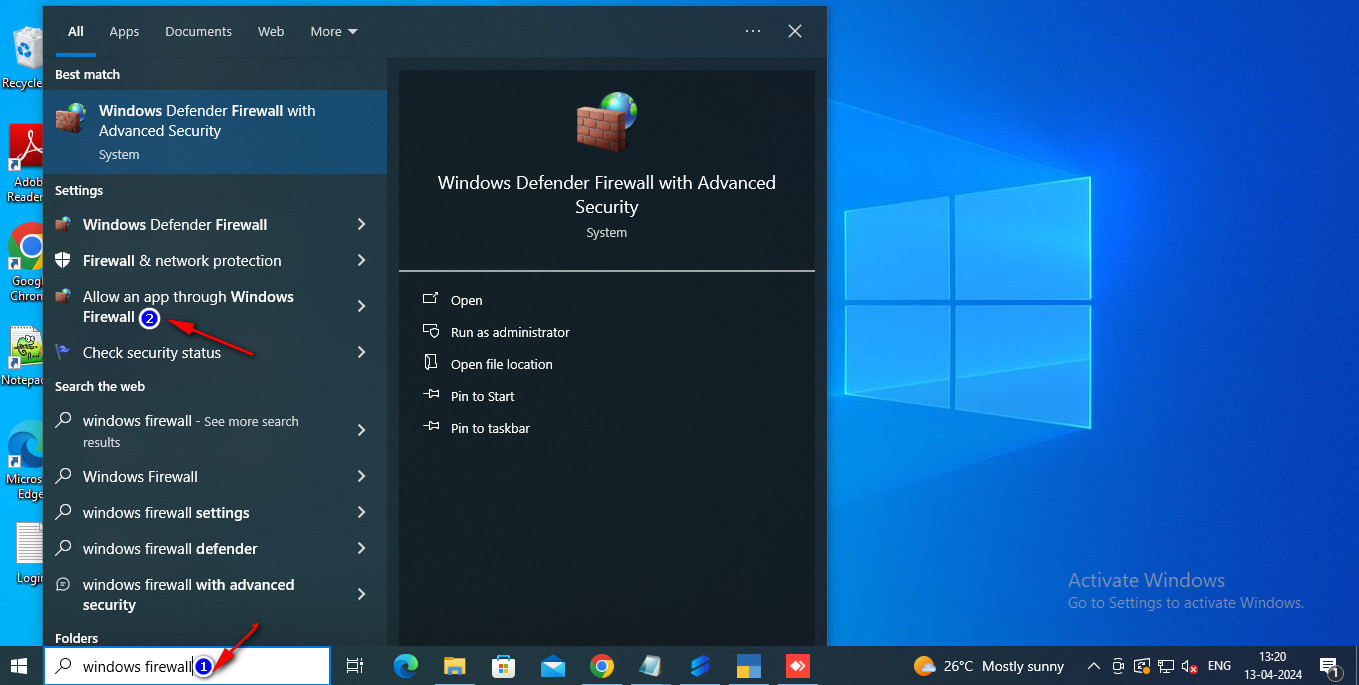
- Open the Windows Search bar, type Windows Firewall, and select Allow an app through Windows Firewall.
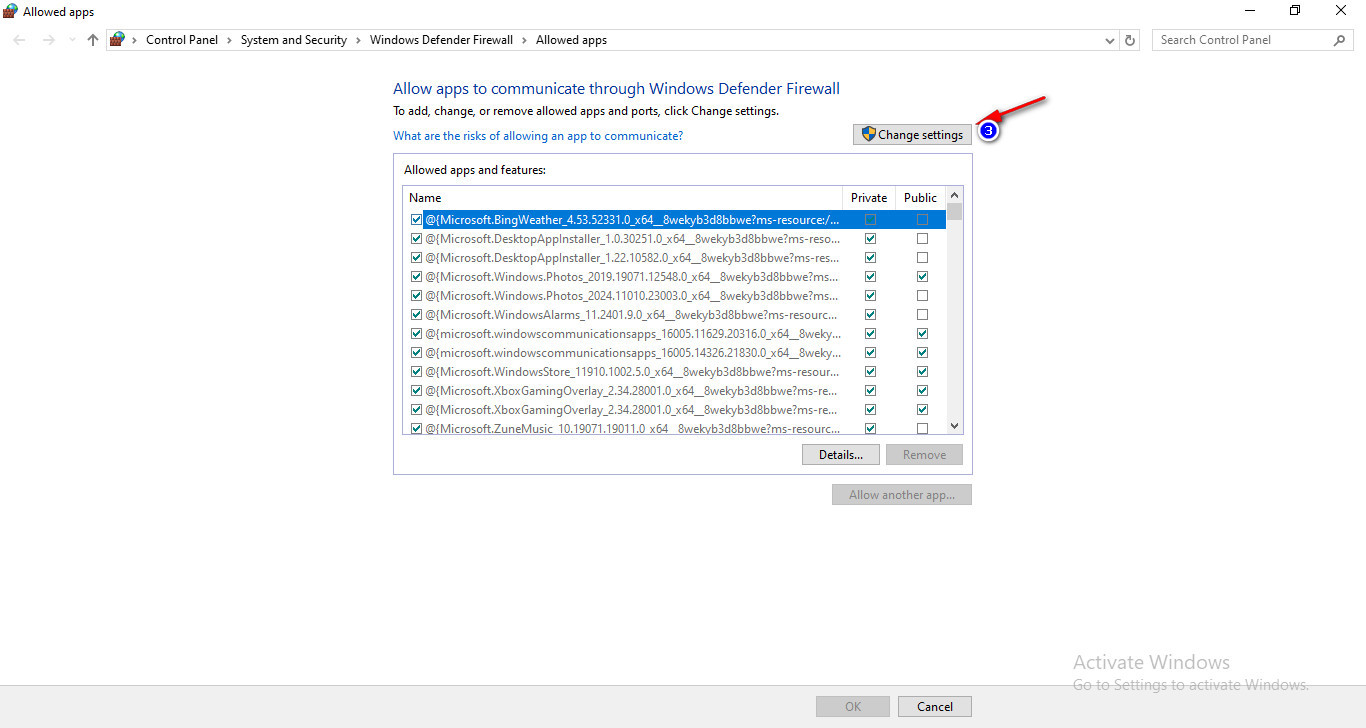
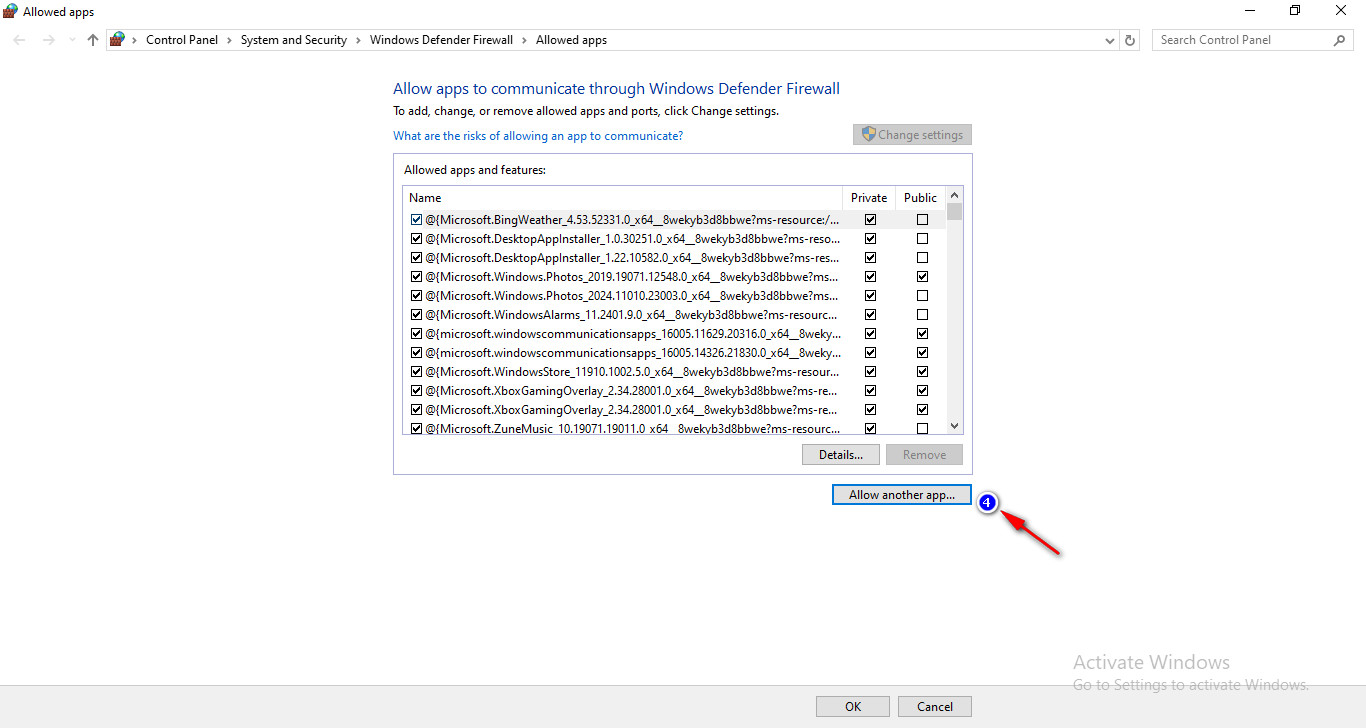
- Click Browse and navigate to the desktop.
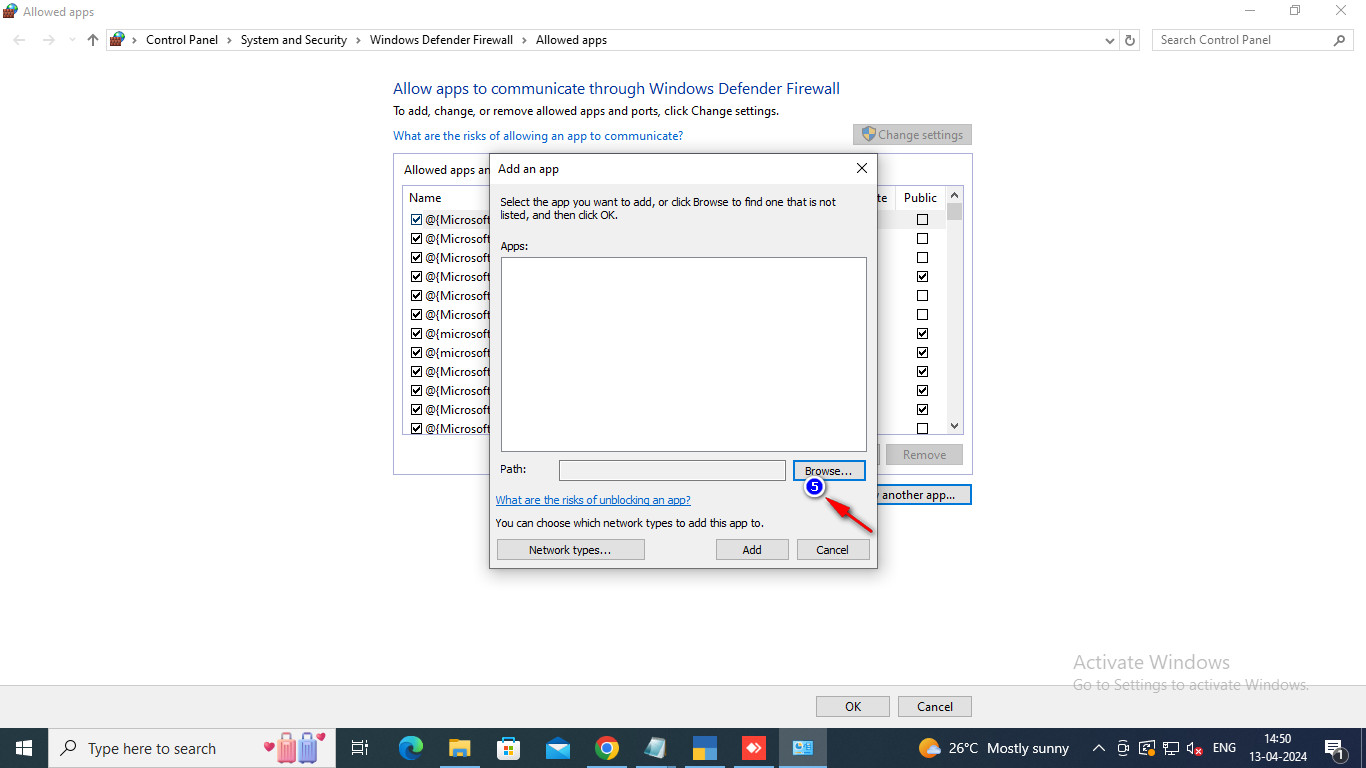
- Select the Vyapar TaxOne shortcut and click Open.
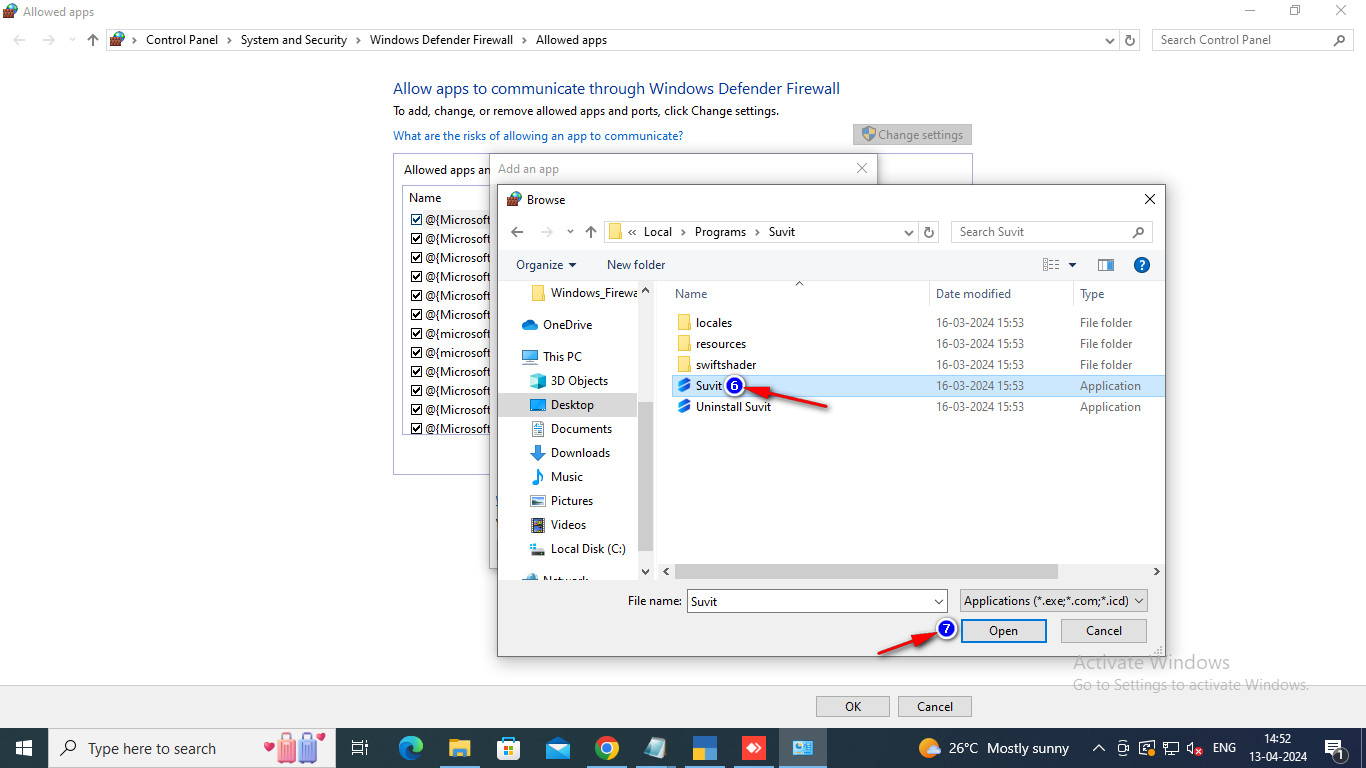
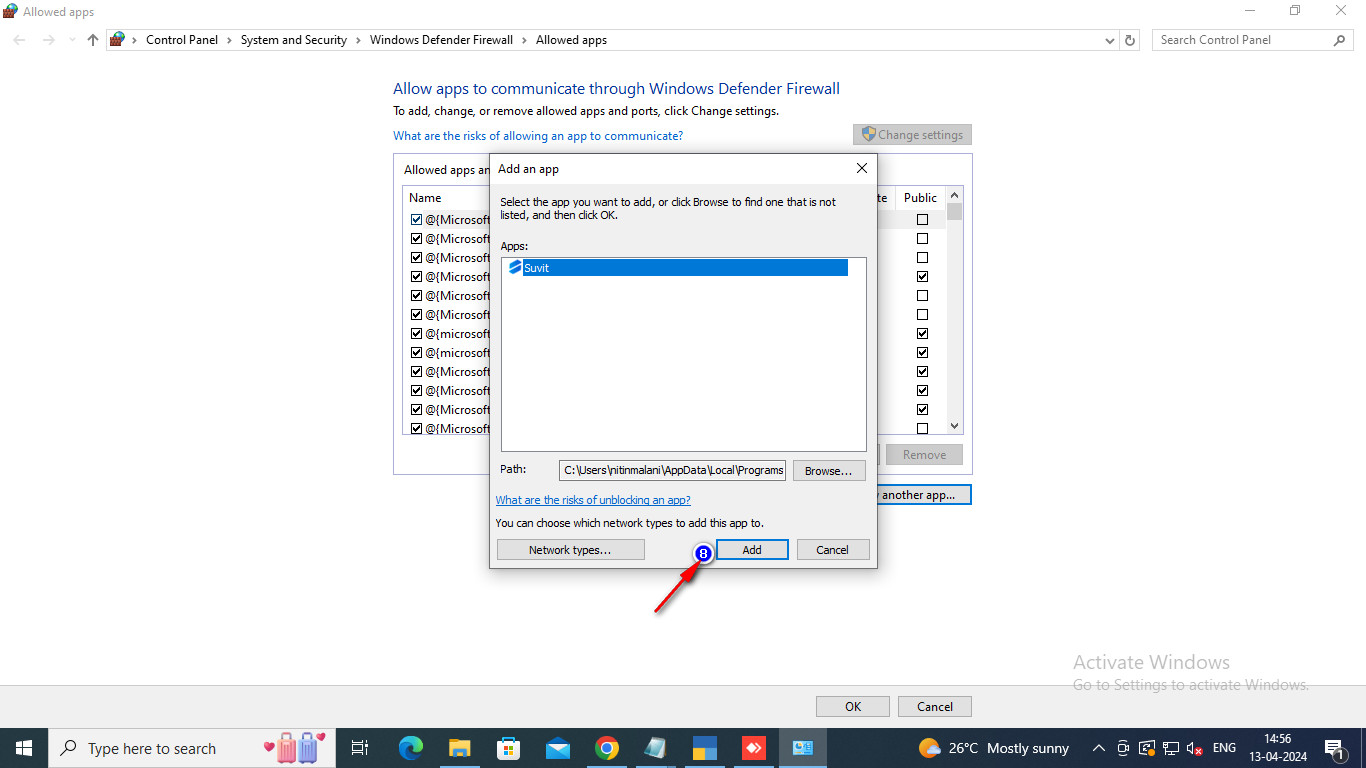
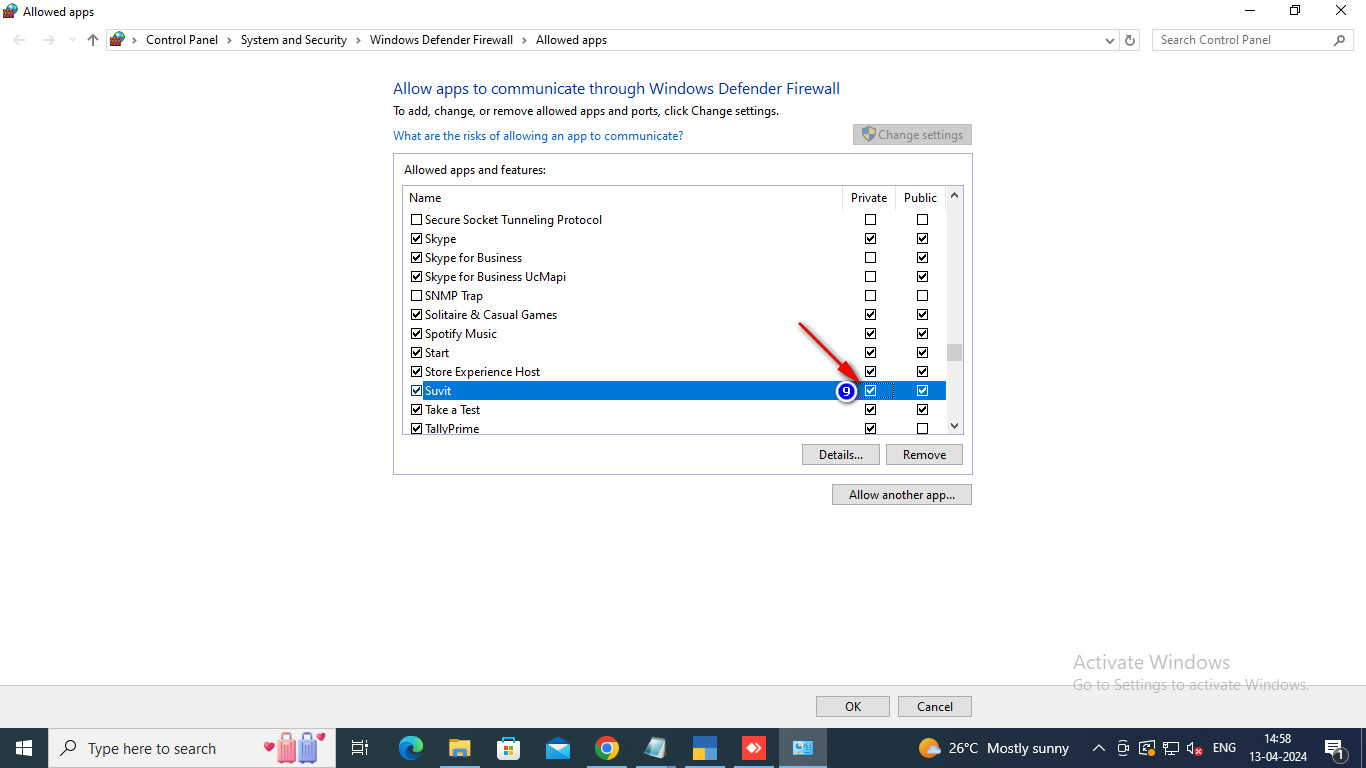
- Ensure Vyapar TaxOne is selected, then check both Private and Public options for Vyapar TaxOne. Click OK to save your changes.
2. Disable Antivirus Real-Time Protection and Add Exclusions
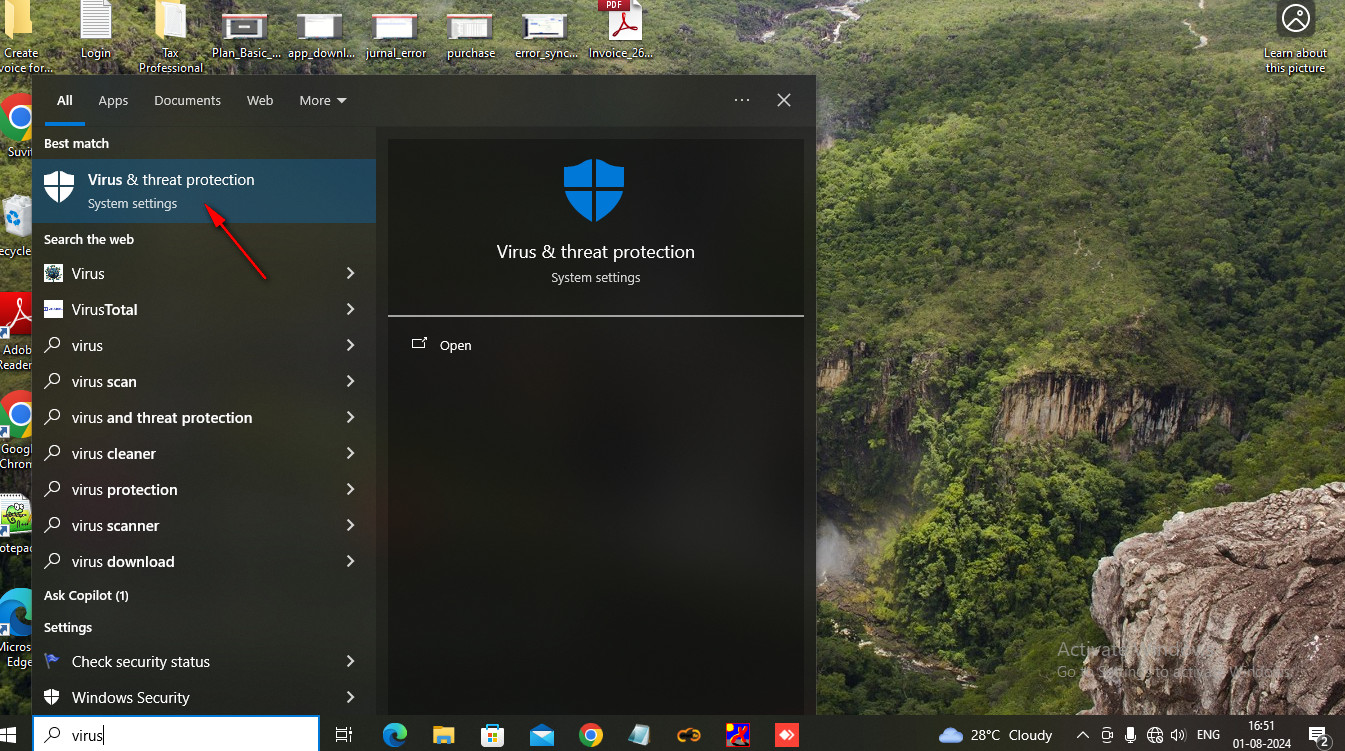
- Open the Windows Search bar, type Virus and threat protection, and select it.
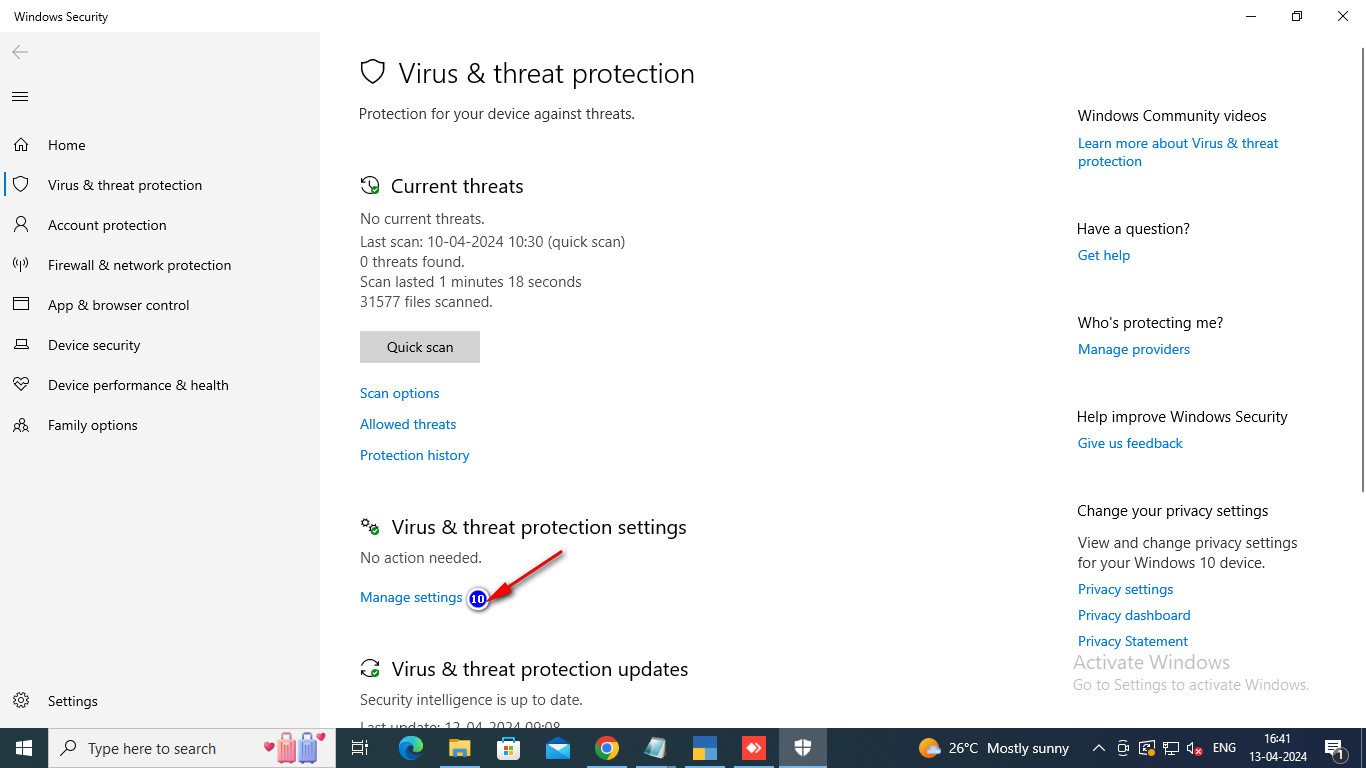
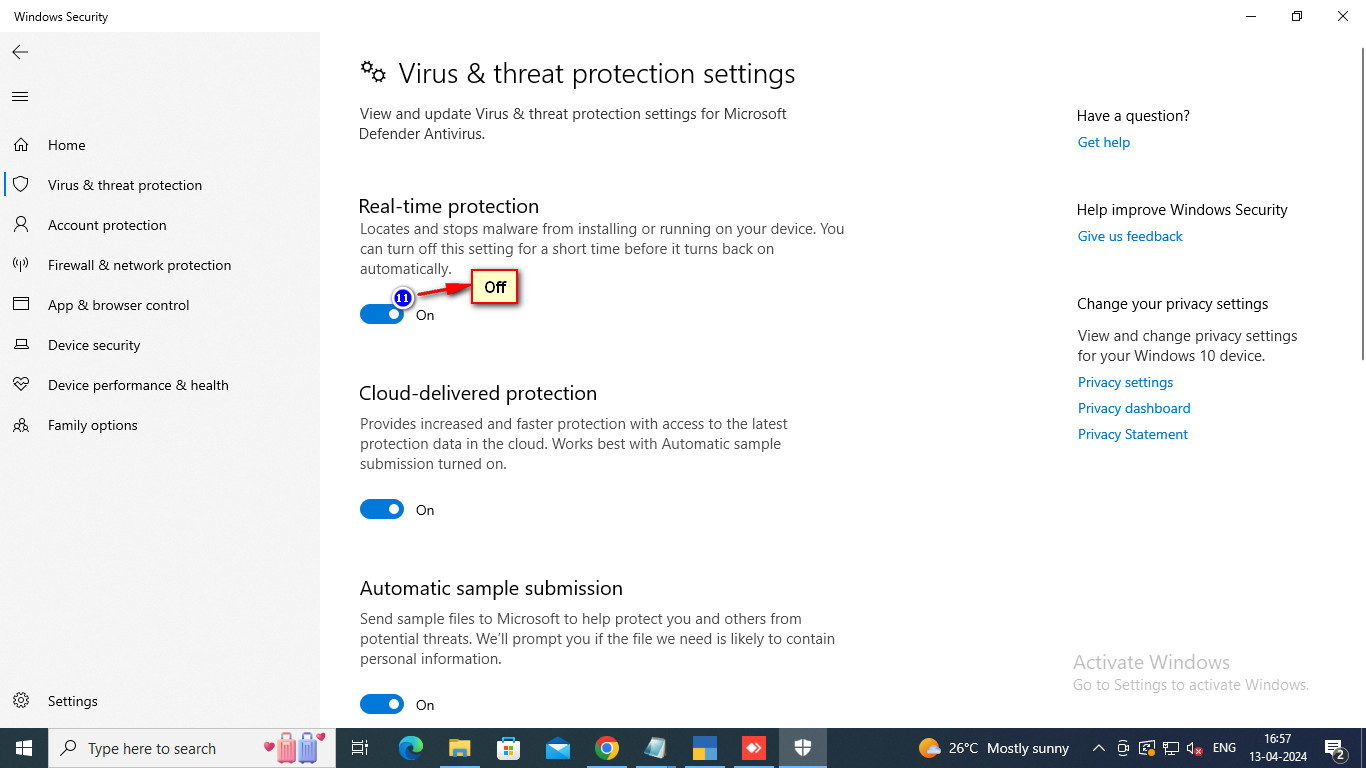
- Turn off the Real-time protection toggle.
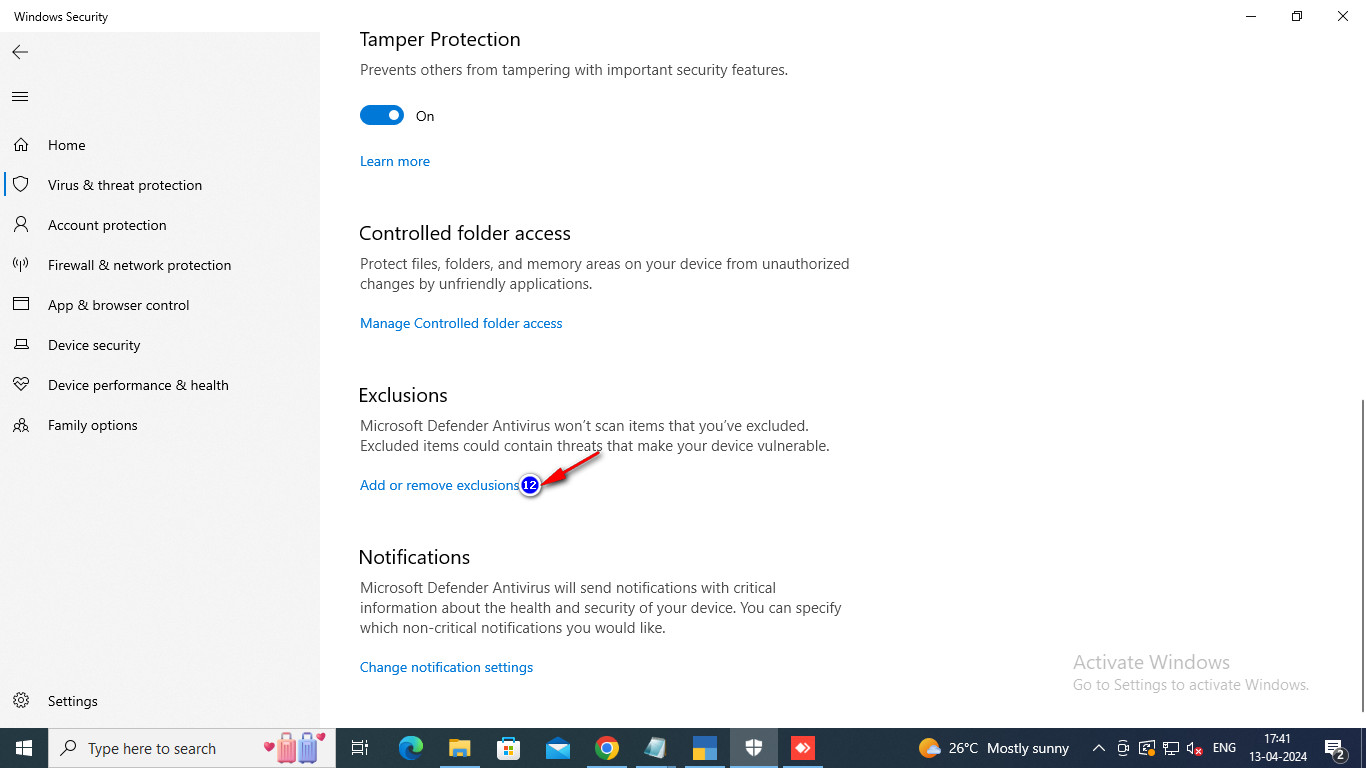
- Scroll down and find Exclusions, then click Add or remove exclusions.
3. Add Folder and File Exclusions
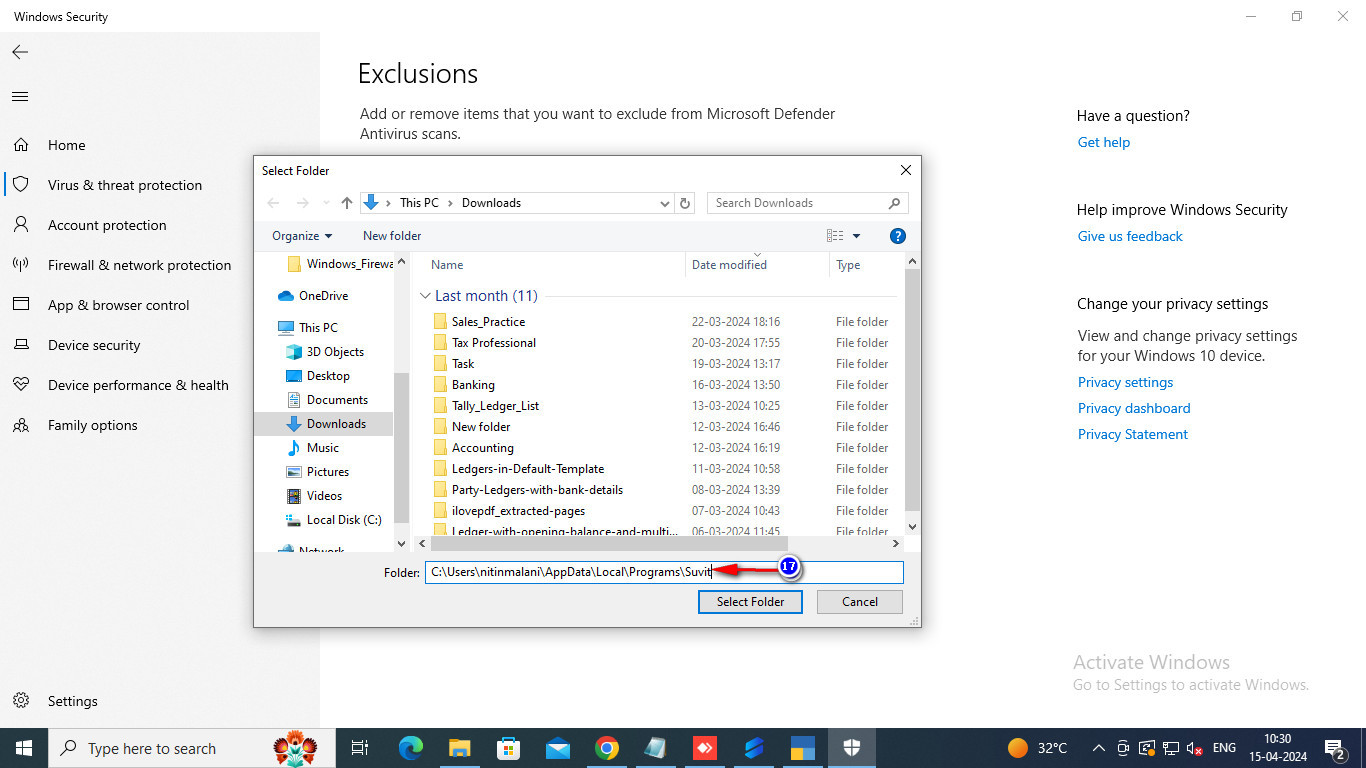
- Click Add an exclusion, then select Folder.
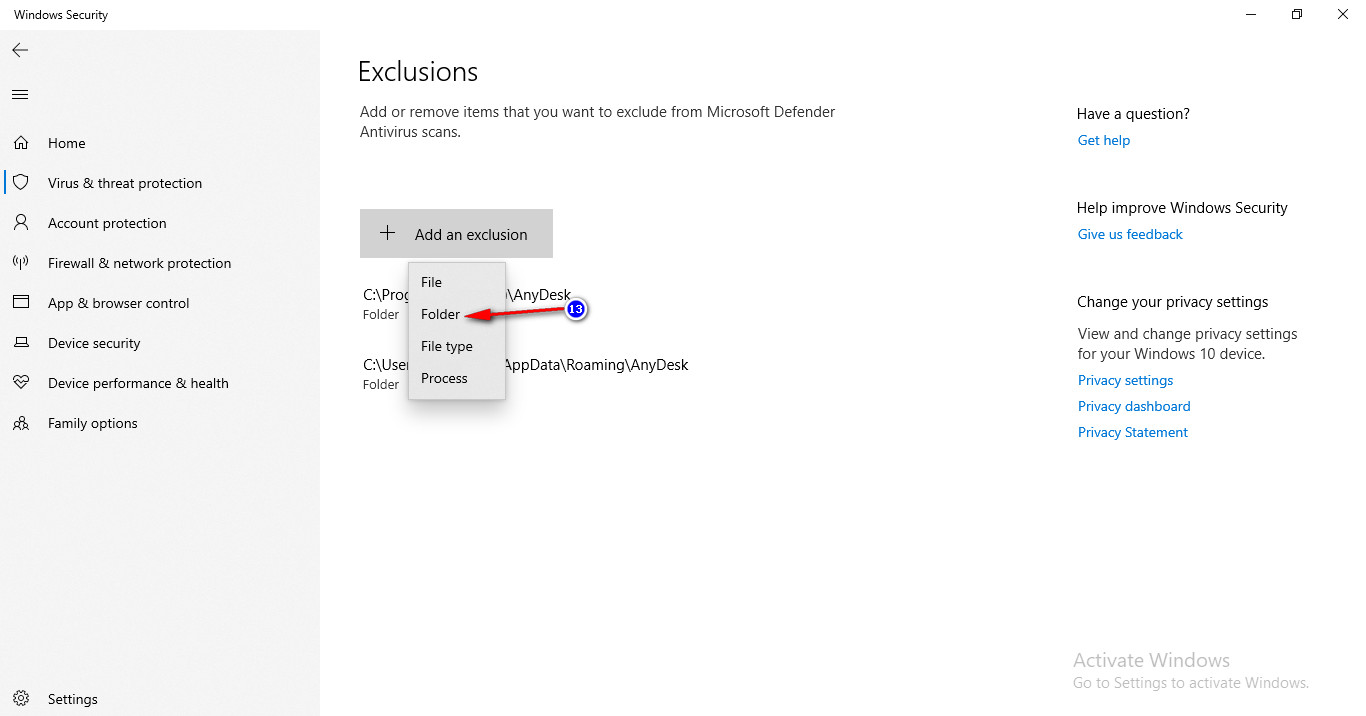
- Press Windows + R to open the Run dialog. Type appdata and click OK.
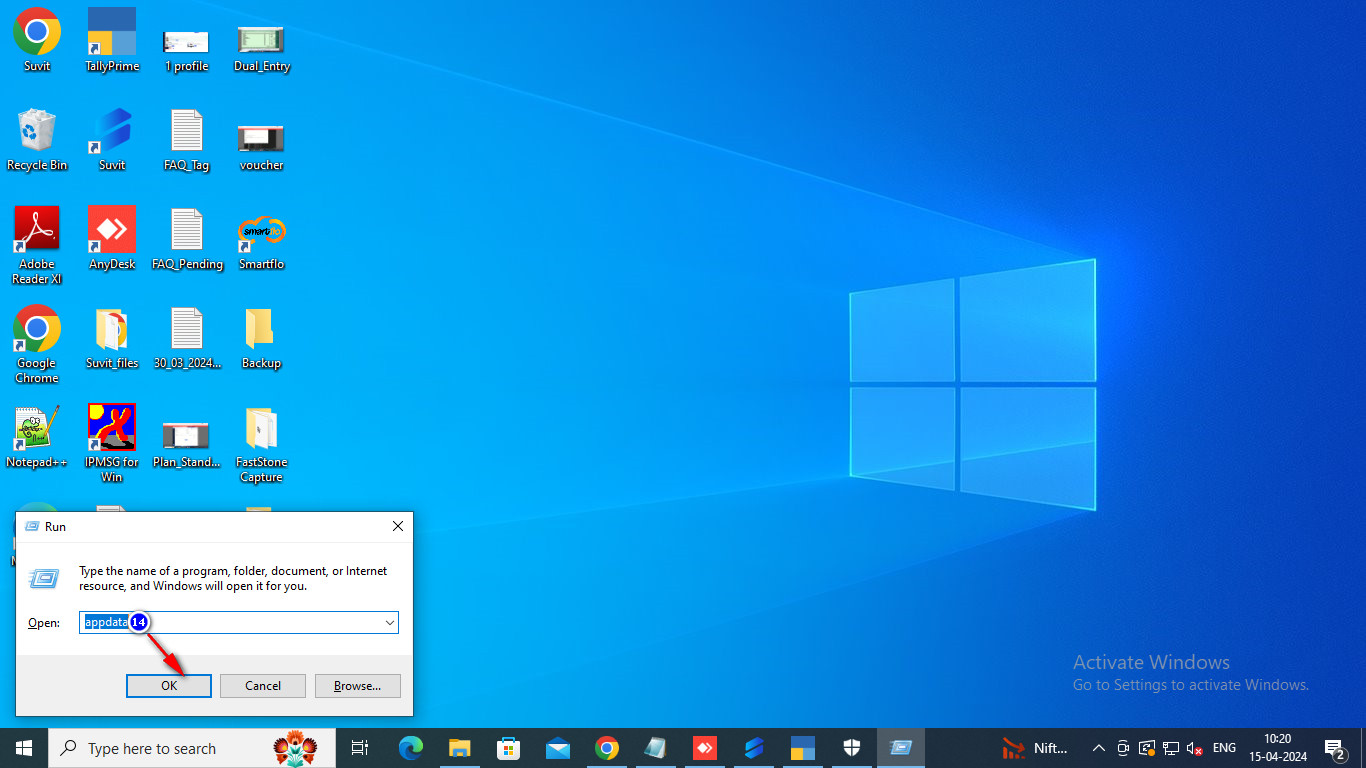
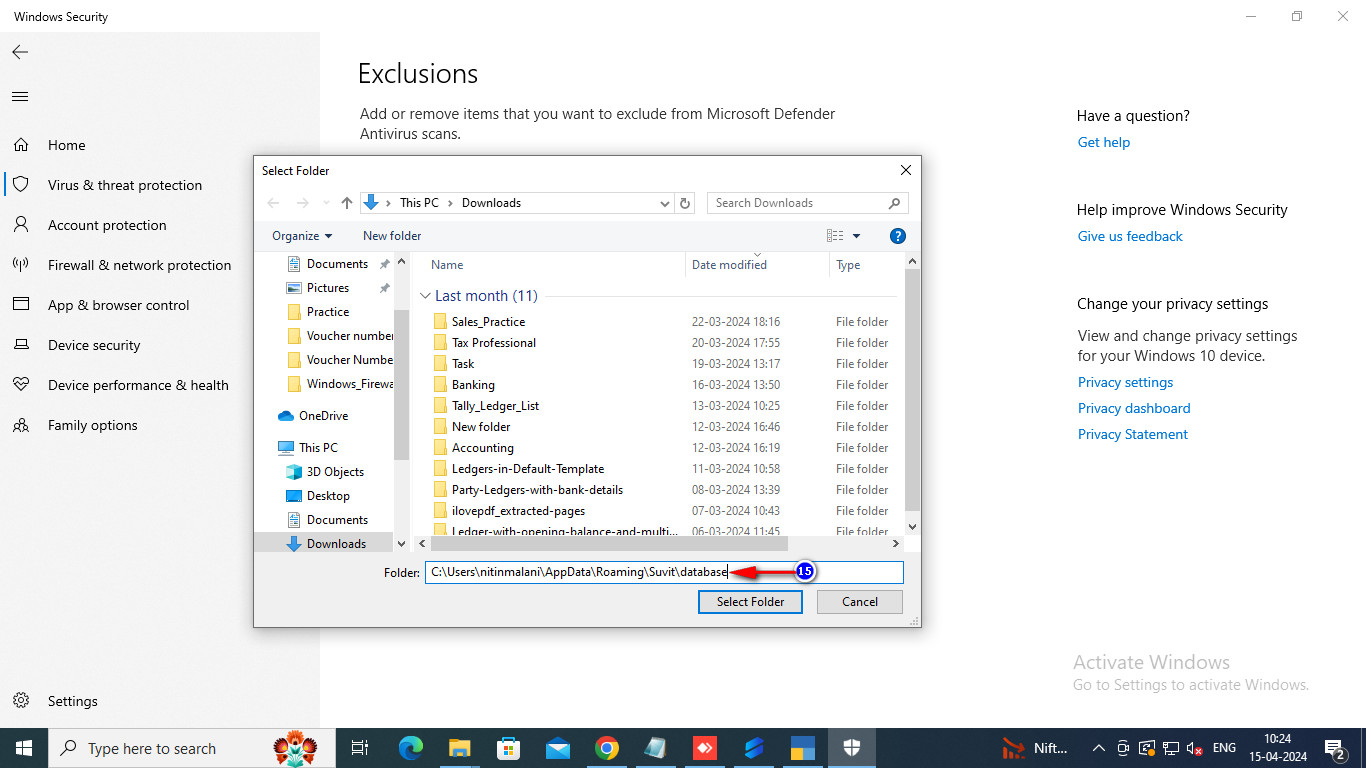
- In the AppData folder, navigate to Roaming > Vyapar TaxOne > Database. Select this folder and click Select Folder.
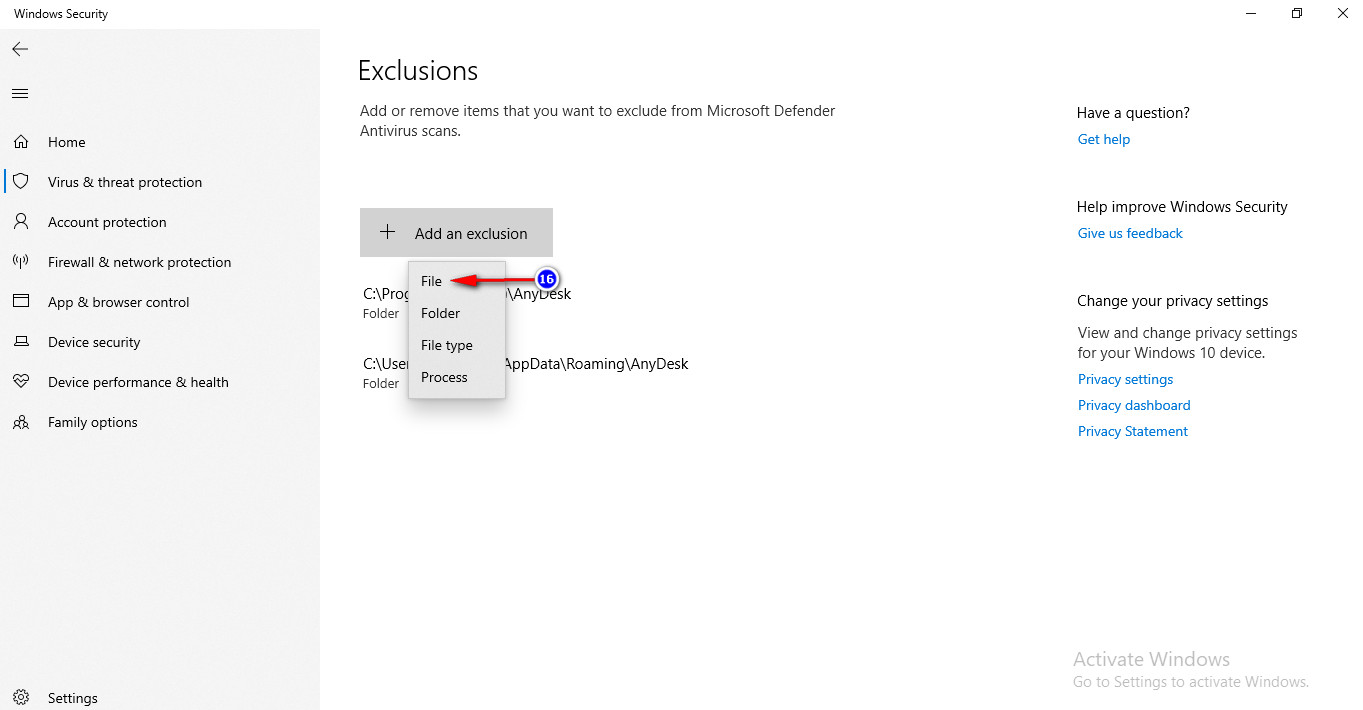
- Repeat the exclusion process but choose File this time.
- Press Windows + R again, type appdata, and click OK. Navigate to Local > Program > Vyapar TaxOne and select the relevant files.
4. Restart Your PC
- After completing the steps above, restart your PC and try login
