How to Bulk Create Vouchers from Flipkart/Amazon Sales Files in TaxOne
Upload your original Flipkart or Amazon sales files in Vyapar TaxOne and bulk create sales vouchers for Tally. Step-by-step guide for ecommerce sellers and CAs.
Step 1: Go to Bulk Upload - Sales
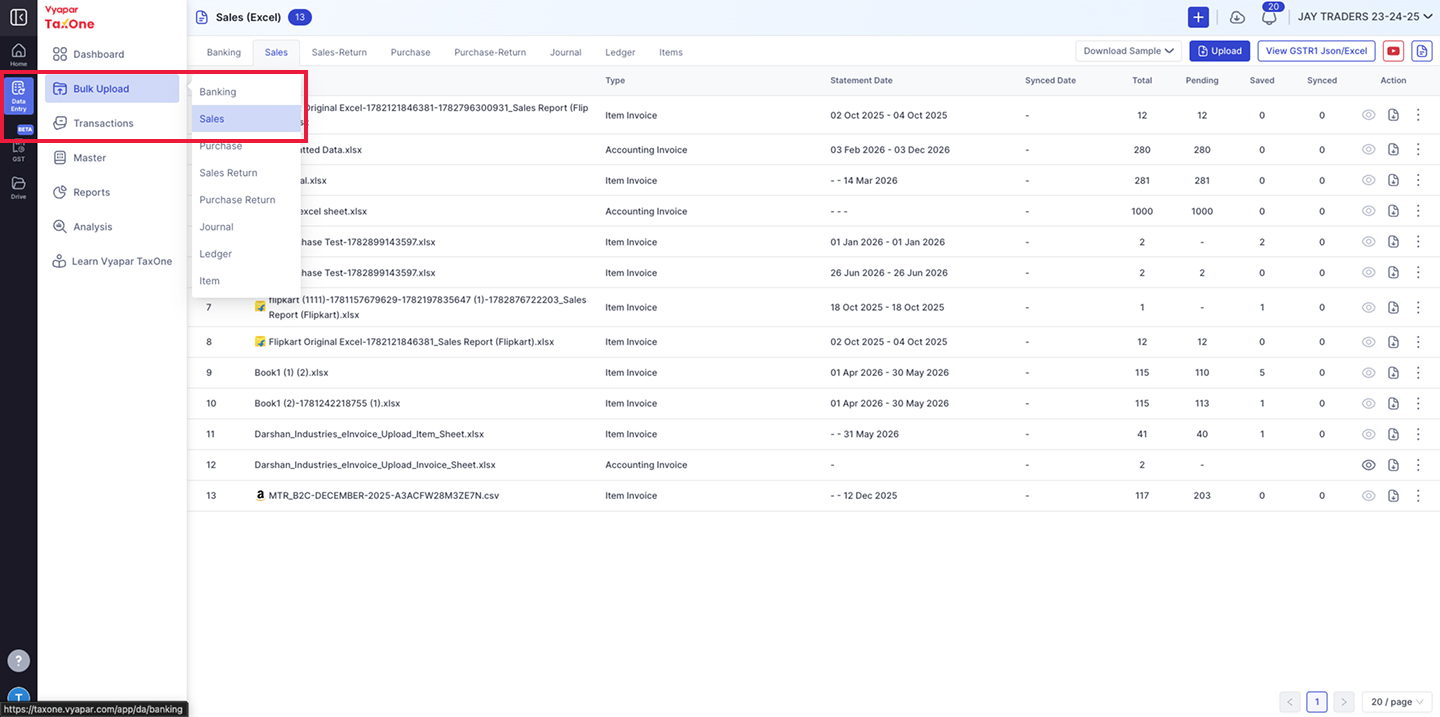
- In the left sidebar, click on Data Entry - Bulk Upload.
- From the dropdown, select "Sales".
- You will land on the Sales (Excel) listing page showing all previously uploaded sales files.
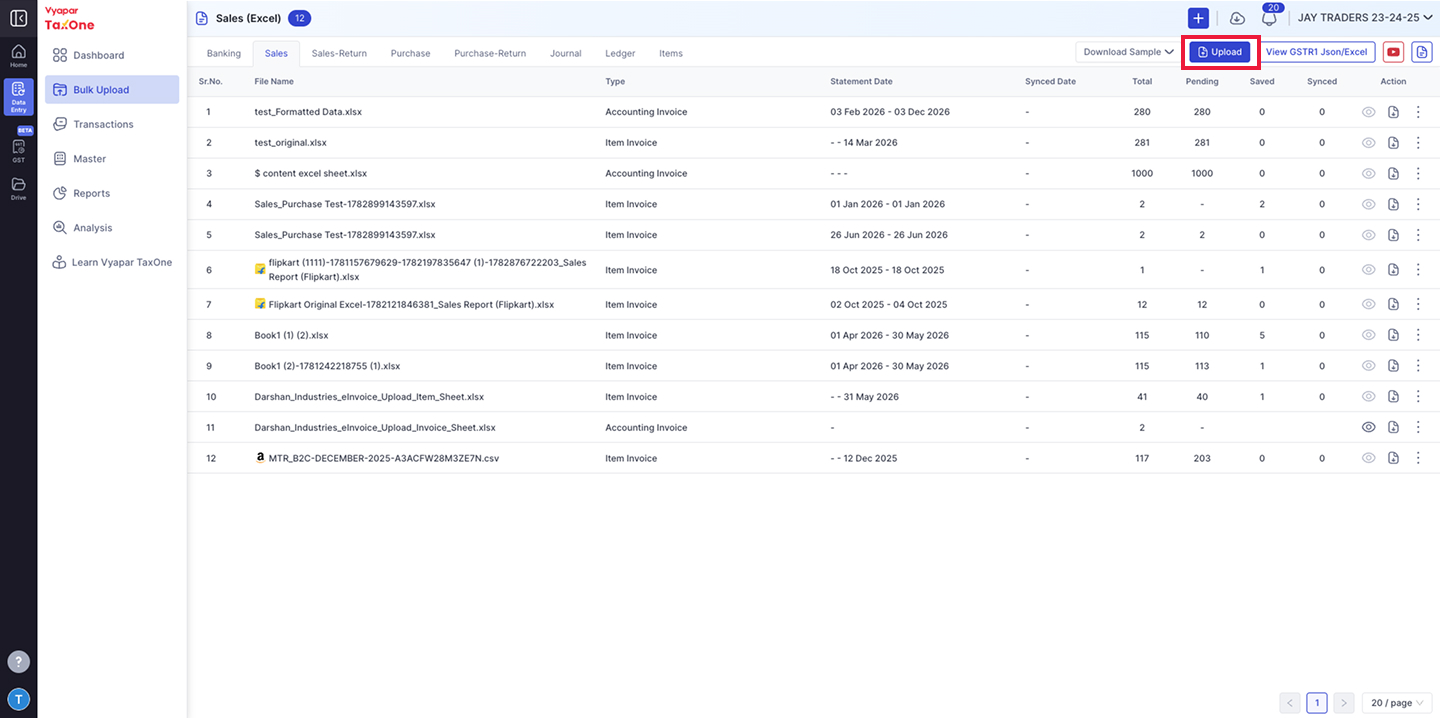
- On the top-right corner of the Sales listing page, click the "Upload" button (blue button).
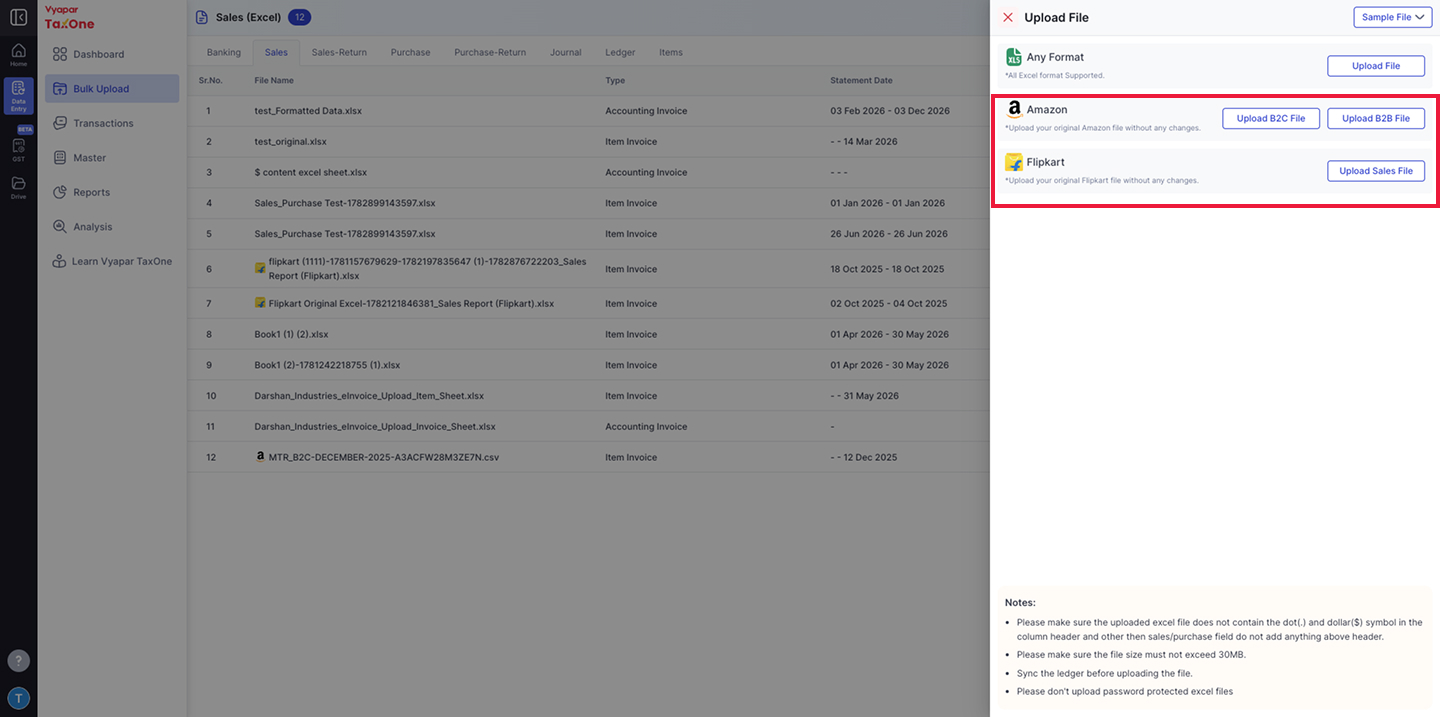
- An "Upload File" panel will appear on the right side with three upload options:
Option A - Any Format (Generic Excel Upload)
- Click "Upload File" to upload any sales Excel file.
- All Excel formats are supported.
Option B - Amazon
- Click "Upload B2C File" to upload your Amazon B2C sales report.
- Click "Upload B2B File" to upload your Amazon B2B sales report.
- Upload your original Amazon file without any changes.
Option C - Flipkart
- Click "Upload Sales File" to upload your Flipkart sales report.
- Upload your original Flipkart Sales file without any changes.
⚠️ Important Notes:
- The uploaded Excel file must not contain dot (.) or dollar ($) symbols in column headers.
- Do not add anything above the header row other than the sales/purchase fields.
- File size must not exceed 30MB.
- Sync the ledger before uploading the file.
- Do not upload password-protected Excel files.
Step 4: Import Transactions for All Existing Companies
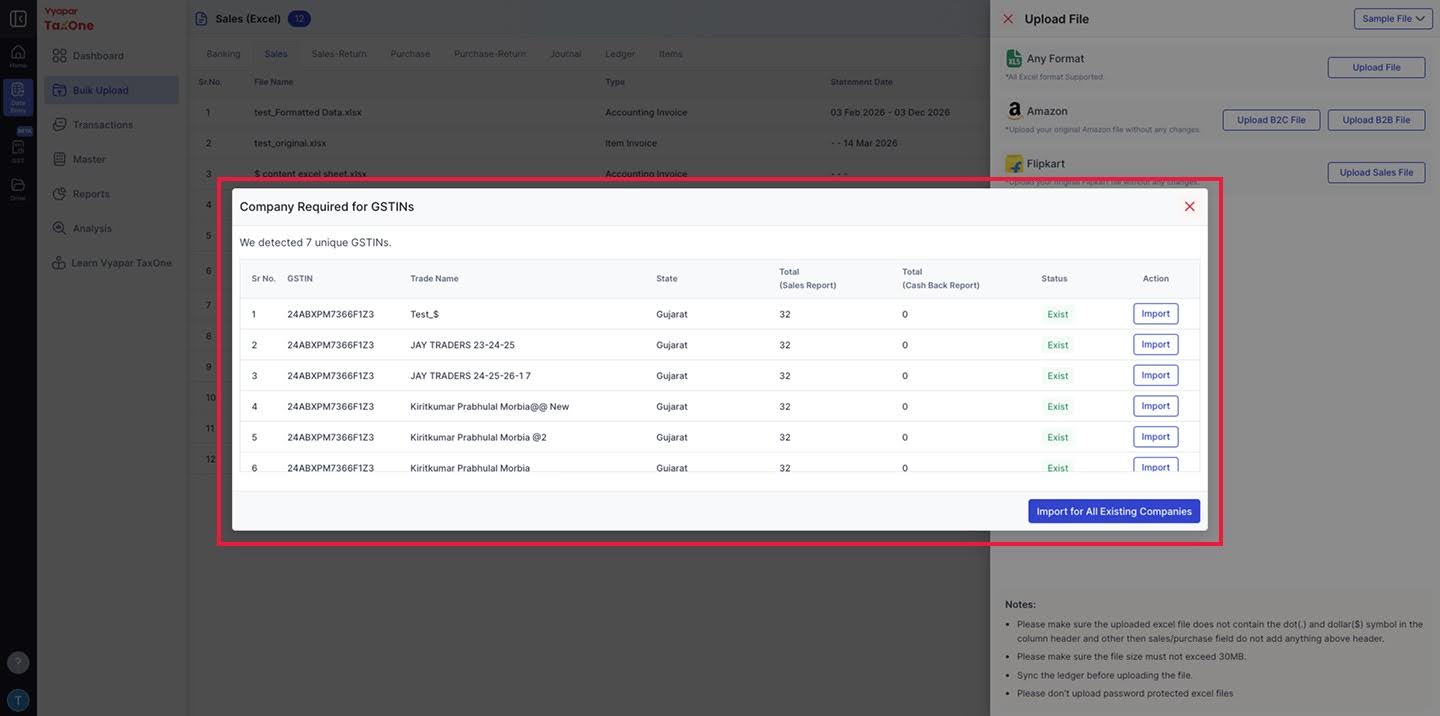
- Once you open the file, TaxOne will display all the parsed transactions.
- Click "Import" to import transactions for all existing companies linked to your account.
- Transactions from different warehouse states (e.g., Karnataka, Maharashtra) will be automatically categorised.
💡 Note: If the seller operates from multiple states, TaxOne handles the state-wise segregation automatically based on the data in the ecommerce file.
Step 5: Select Transactions and Send to Tally
- Review the imported transactions.
- Select the transactions you want to push - you can select individual transactions or all at once.
- Assign the appropriate ledgers if prompted.
- Click "Send to Tally" to create sales vouchers in your connected Tally instance.
- The Synced column in the listing will update to reflect successfully pushed transactions.
Key Benefits
- No Manual Formatting - Upload your original Amazon/Flipkart files as-is. TaxOne automatically maps the columns and extracts transaction data.
- Multi-State Support - Sellers operating from warehouses in multiple states (e.g., Karnataka, Maharashtra) get automatic state-wise segregation in a single upload.
- Amazon B2C + B2B - Separate upload options for Amazon B2C and B2B sales reports. Flipkart provides a single combined sales file.
- Real-Time Tracking - Track upload progress with Total, Pending, Saved, and Synced columns in the Sales listing.
- File Size up to 30MB - Supports all Excel formats (.xlsx, .xls, .csv).
👋 You May Find This Useful:
- Learn how to upload Purchase/Purchase Return data through an Excel sheet Learn more.
- Learn about Auto-Mapping Excel sheet data with Vyapar TaxOne Learn more.
