Import the bank statement
This article will help you understand how to import a bank statement/ how to upload bank statement from Vyapar TaxOne to Tally with all possible steps and setup.
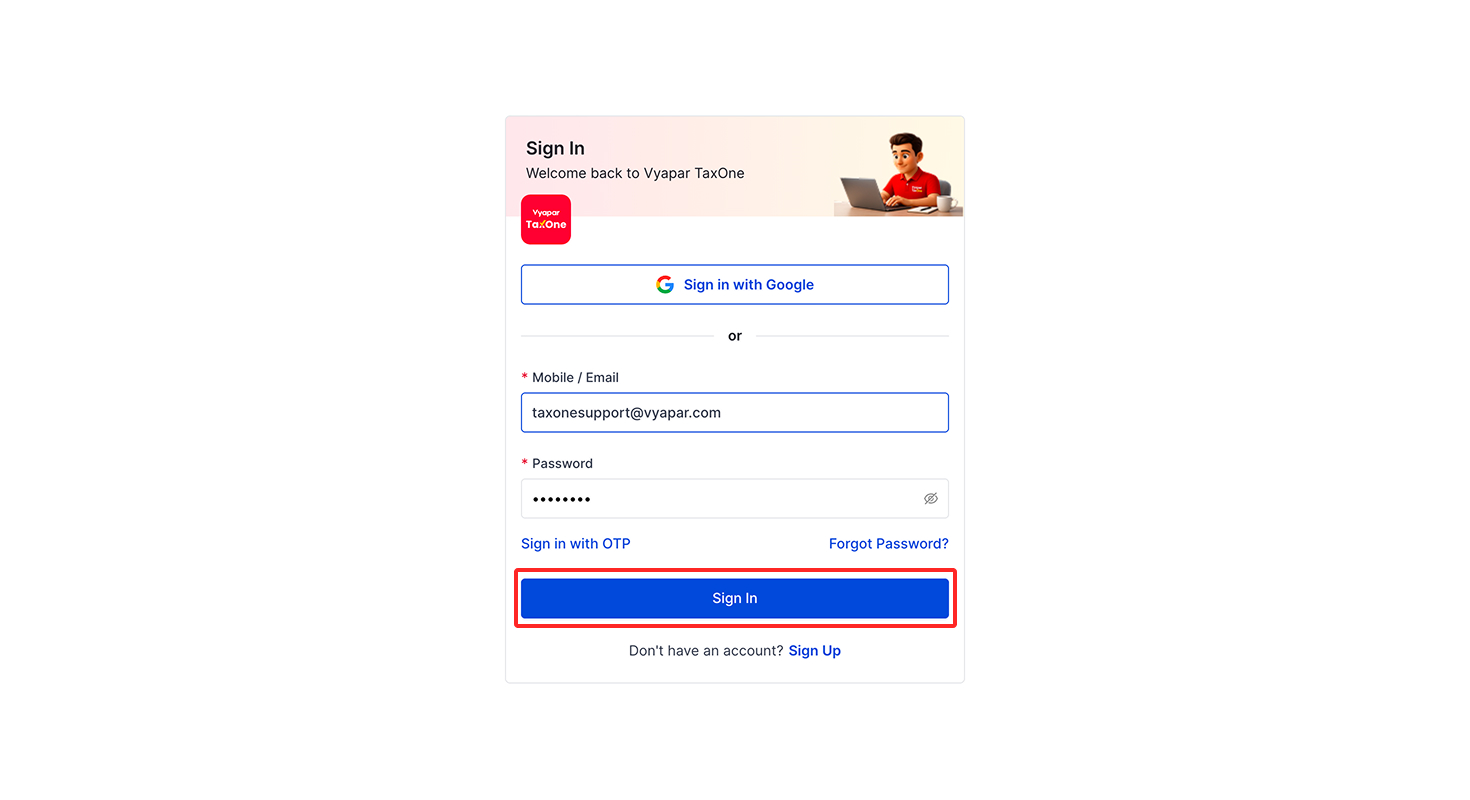
Step 1: Sign In
Step 2: Navigate to Bulk Upload → Banking
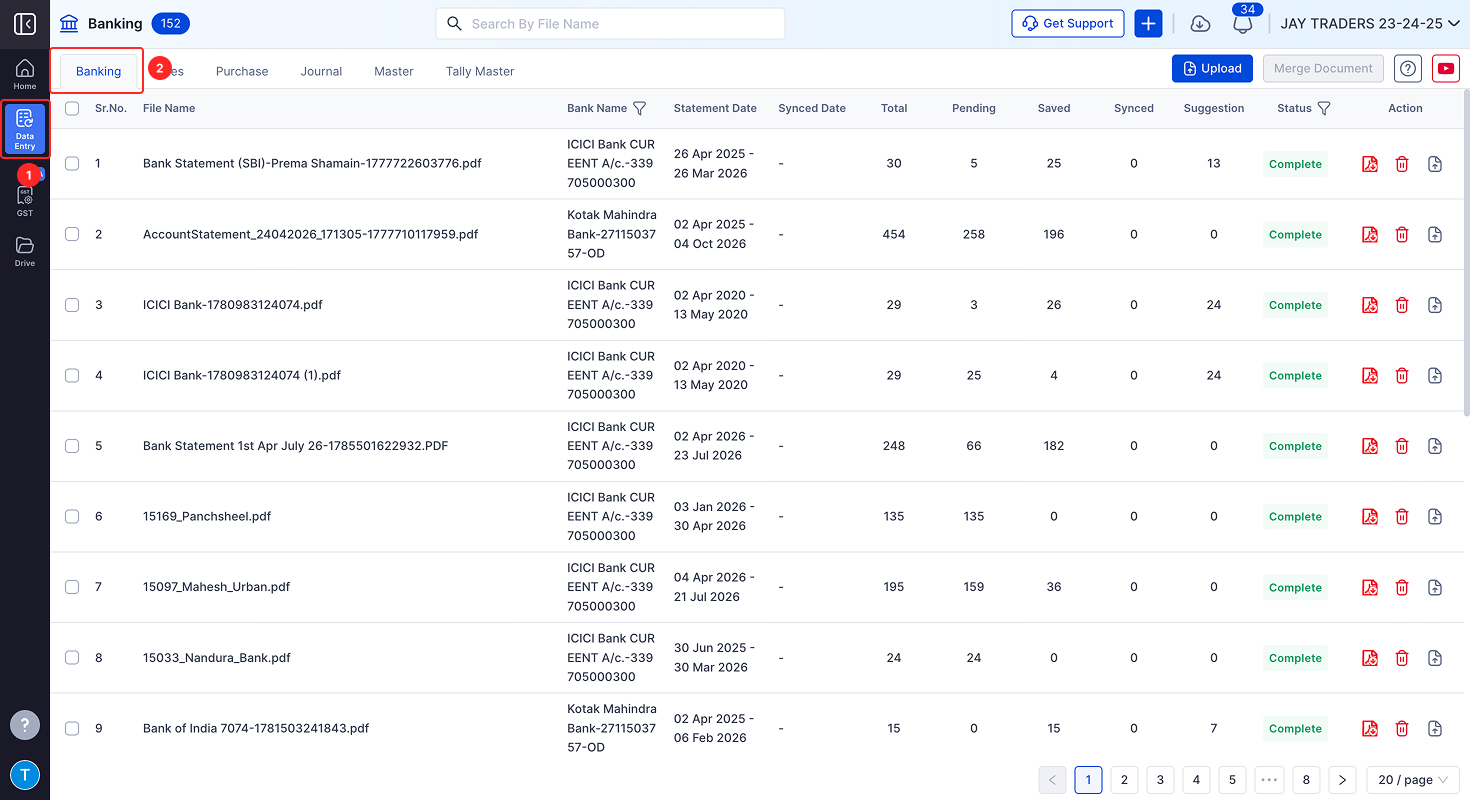
- Click Data Entry from the left-side navigation menu.
- The system will automatically open the Banking screen by default.
- Under the Bulk Upload section, choose Banking from the dropdown list.
Step 3: Choose the Company
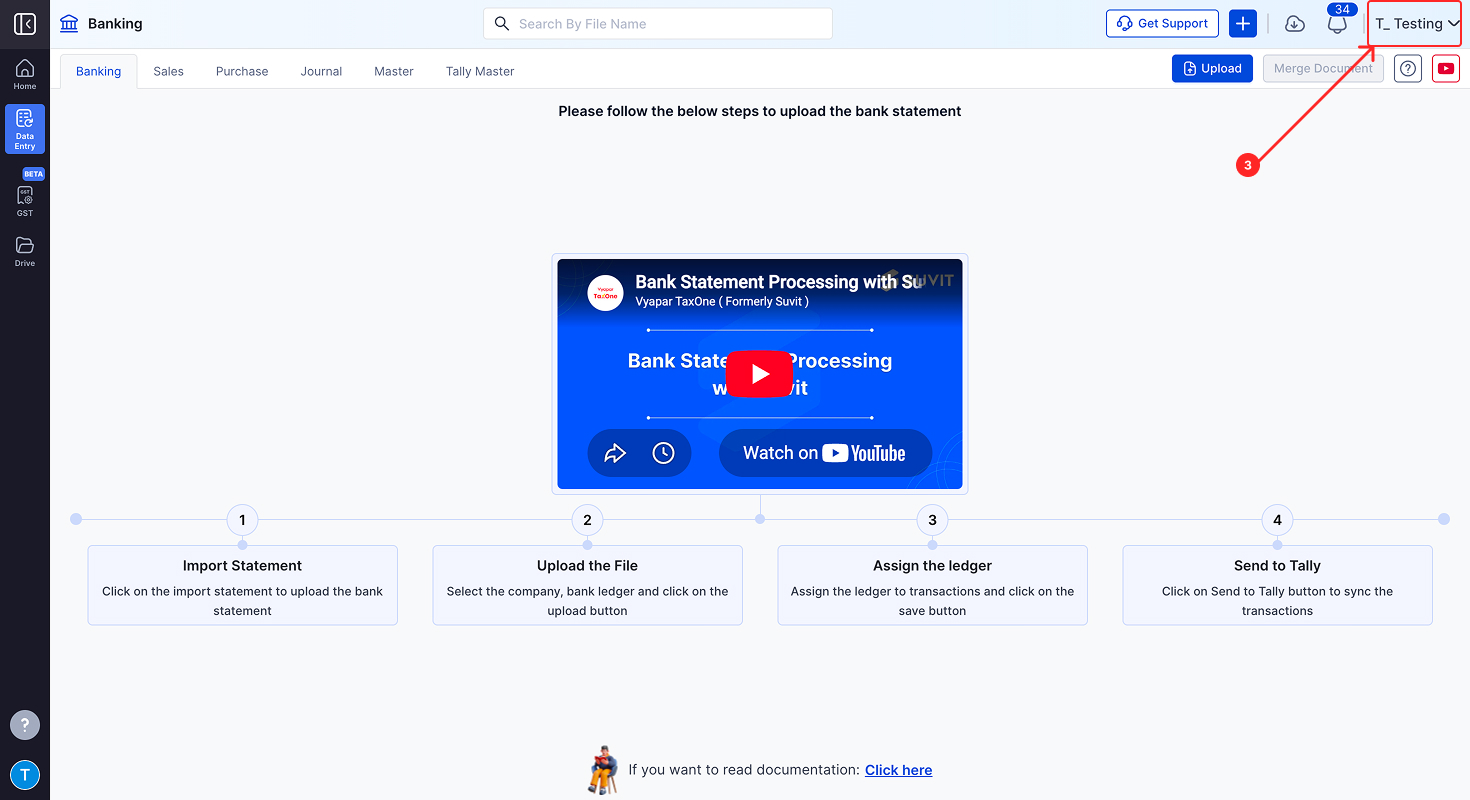
- Click on the top-right corner dropdown to view available companies.
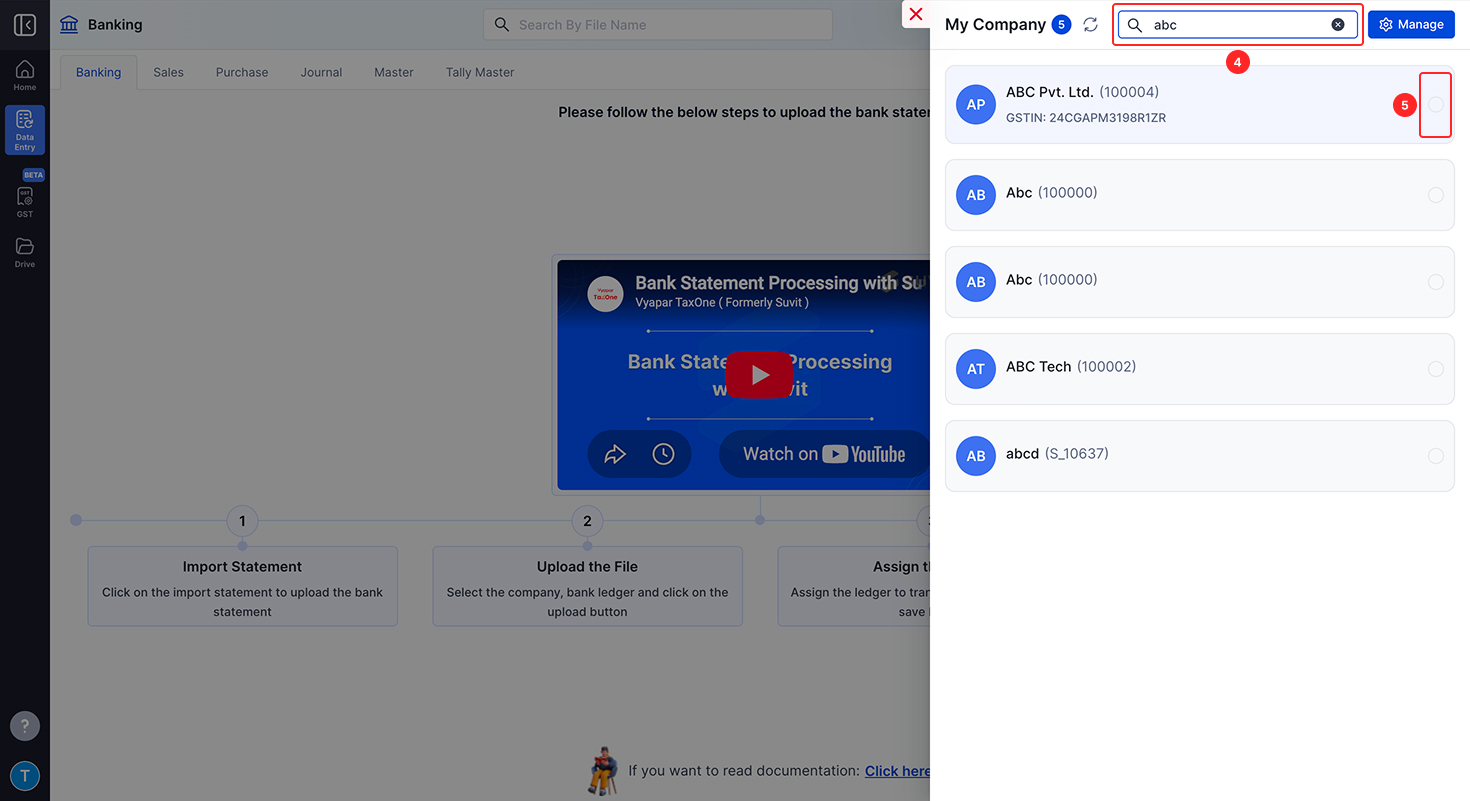
- Use the search bar to type part of your company name (e.g., “vyapar taxone”).
- Select the box beside the desired company.
Step 4: Import the Statement
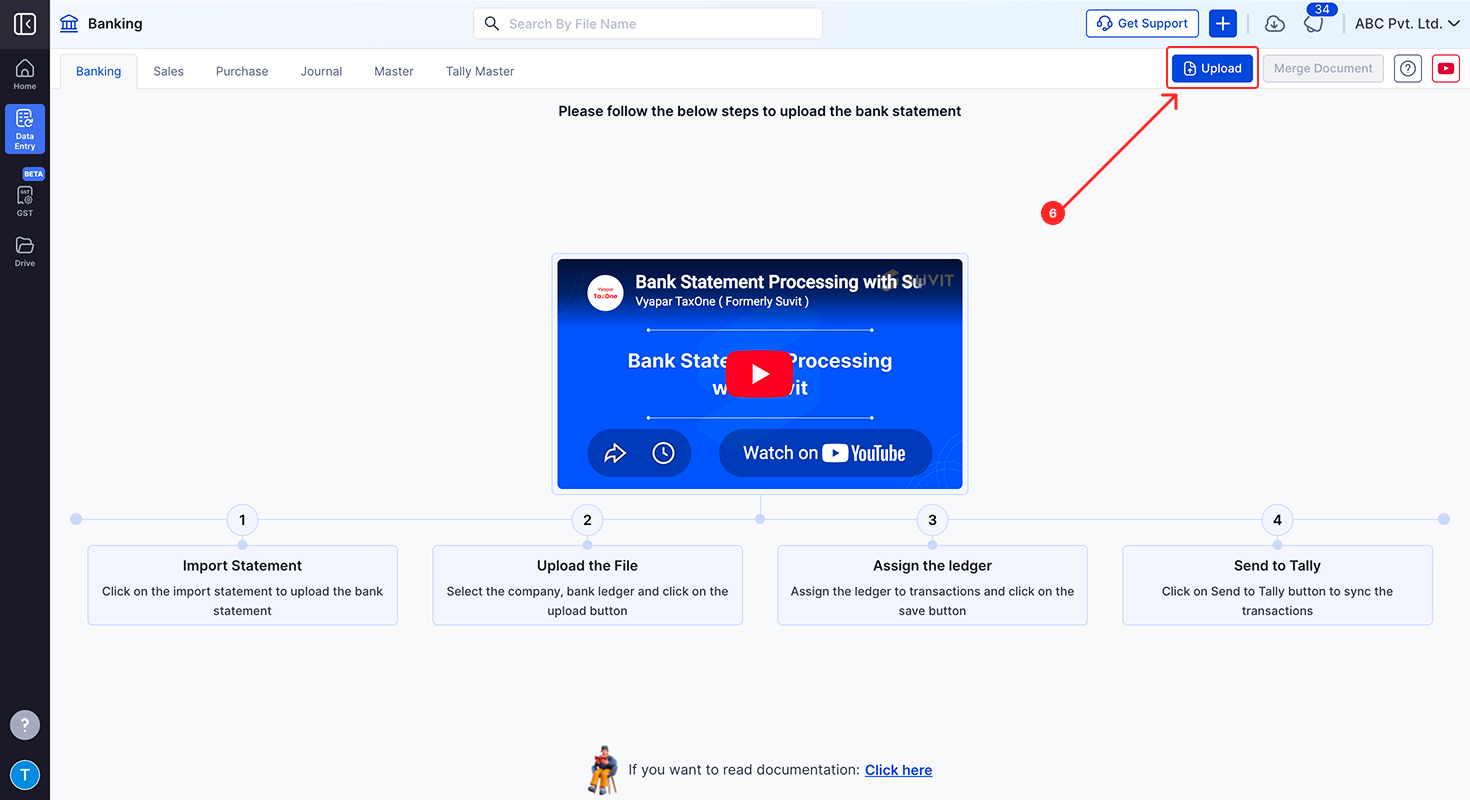
- Click the Upload button located in the top-right section of the Banking screen.
Step 5: Select Bank & Attach File
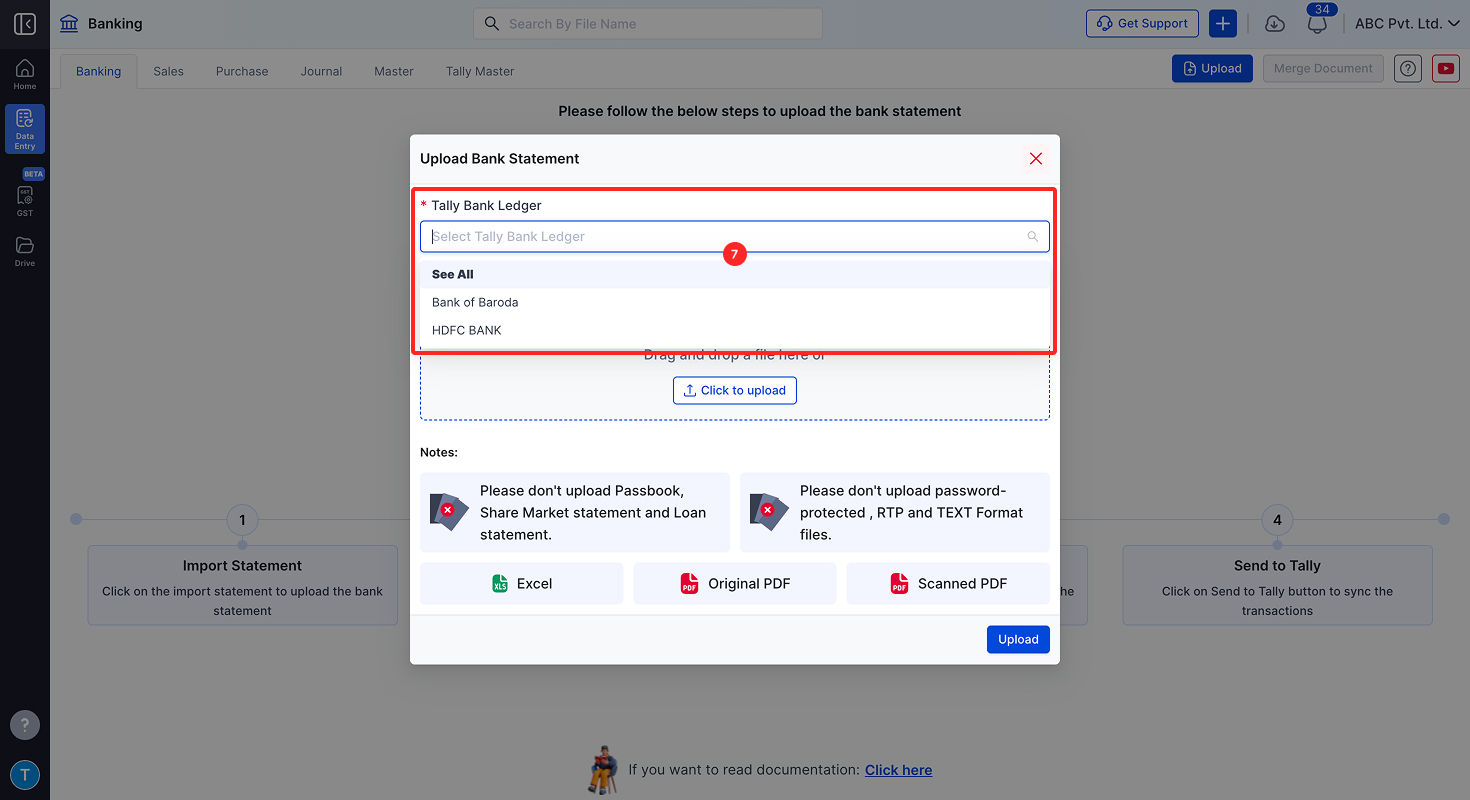
-
From the pop-up window:
- Choose the relevant Bank (e.g., Bank of Baroda, HDFC Bank).
Step 6: Upload the File
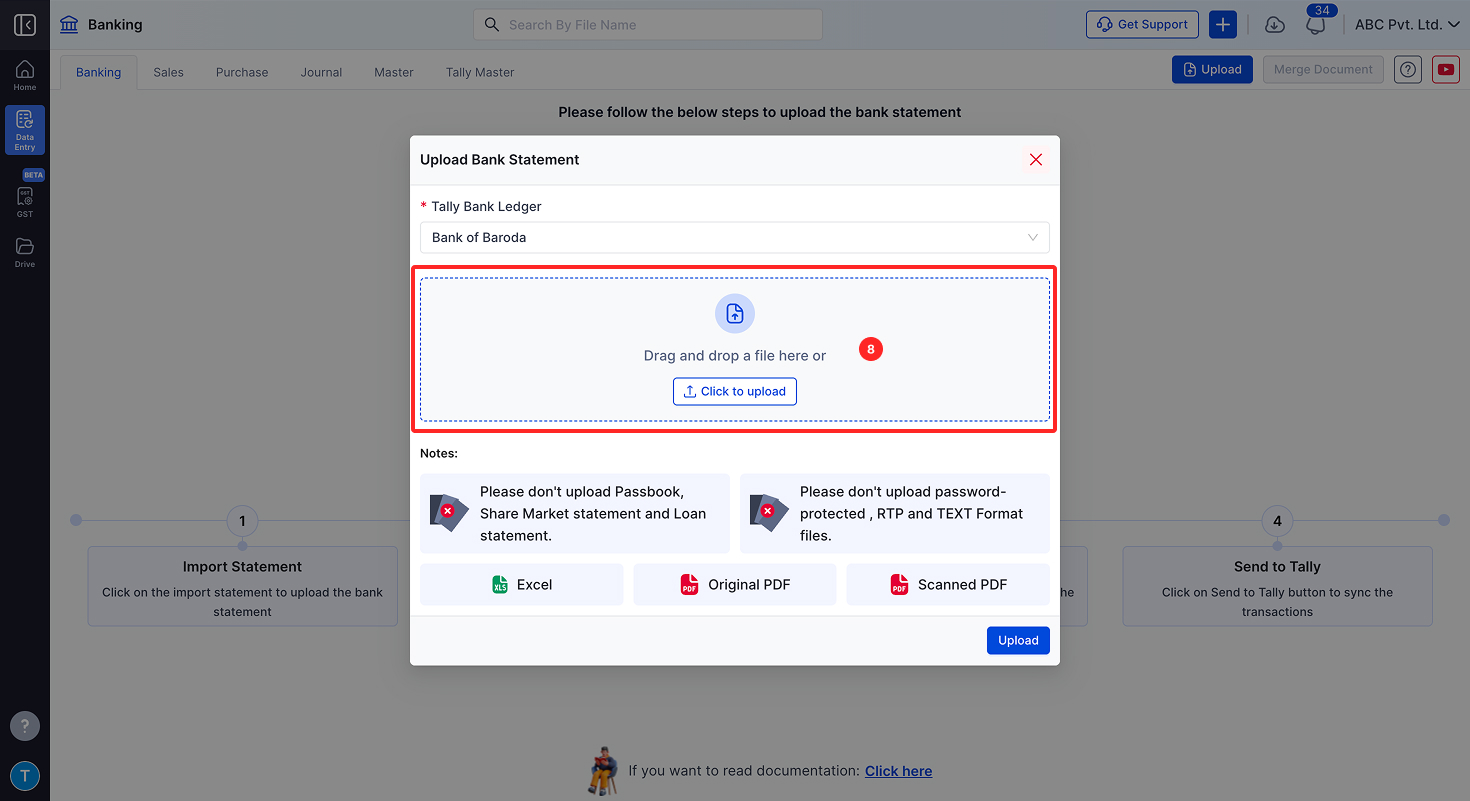
-
Drag and drop the file or click to upload.
-
Ensure the correct bank and file are selected.
-
Click the Upload button at the bottom-right.
⚠️ If a document with the same name already exists, a warning about duplication will appear.
Step 7: Processing Status
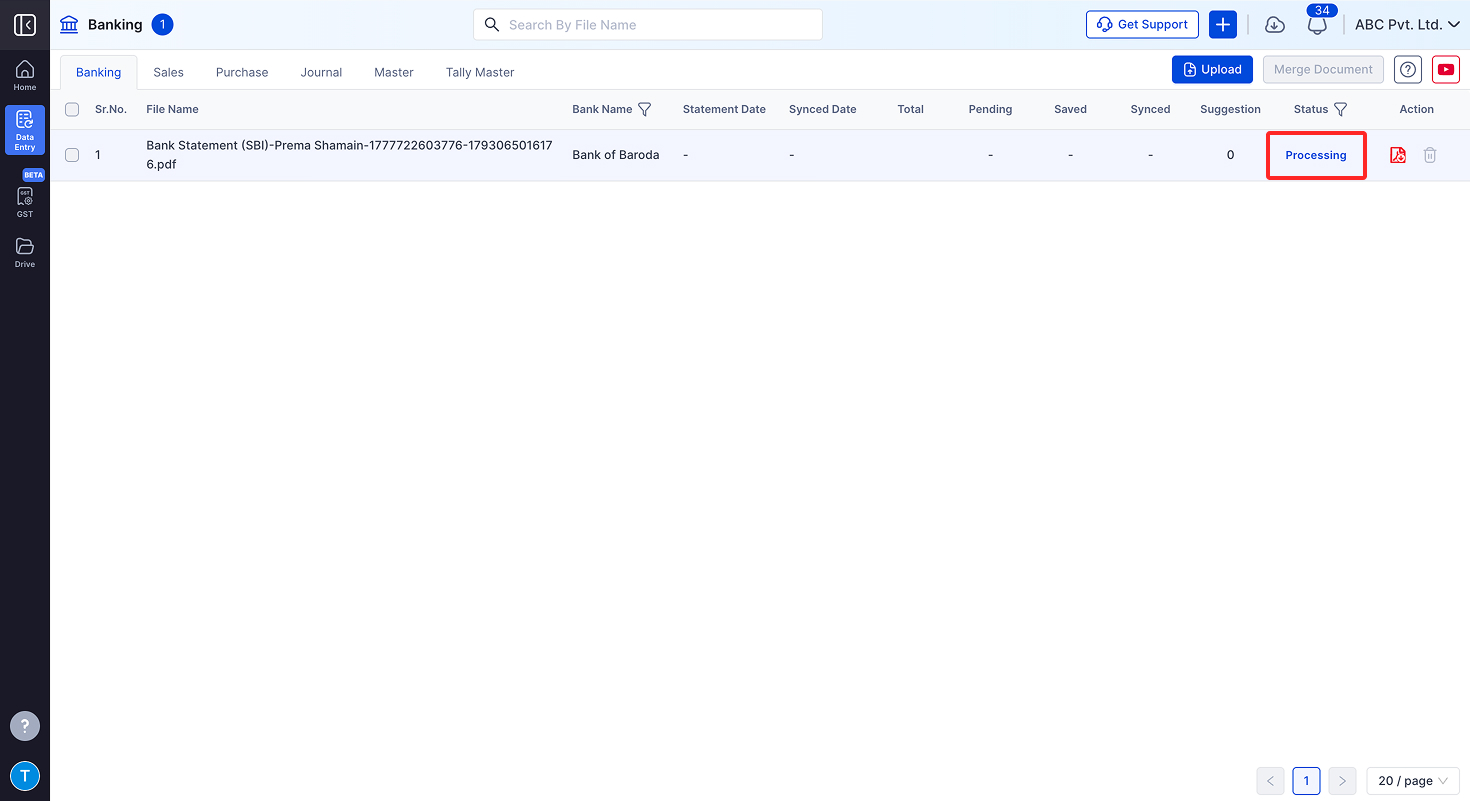
- After clicking upload, the file will appear in the Processing state.
- Wait until the status changes to Complete or Failed.
🕒 If the processing takes too long, try refreshing the page using Ctrl + Shift + R.
Additional Information
⏱ Document Processing Times
- Excel Sheet: Up to 30 minutes
- Original PDF: Up to 1 hour
- Scanned PDF: Up to 12 hours
🛑 Unsupported File Types
❌ Passbooks
❌ Share Market Statements
❌ Loan Statements
❌ Password-Protected PDFs
❌ RTP/TXT formats
❌ Dot Matrix font formats
Helpful Links
