How To Download GSTR 1 report Json/Excel
Once your sales data is processed in Vyapar TaxOne, you can generate the GSTR-1 return directly from the Sales module. The report can be downloaded in both Excel and JSON formats
Step 1: Go to Data Entry - Bulk Upload - Sales
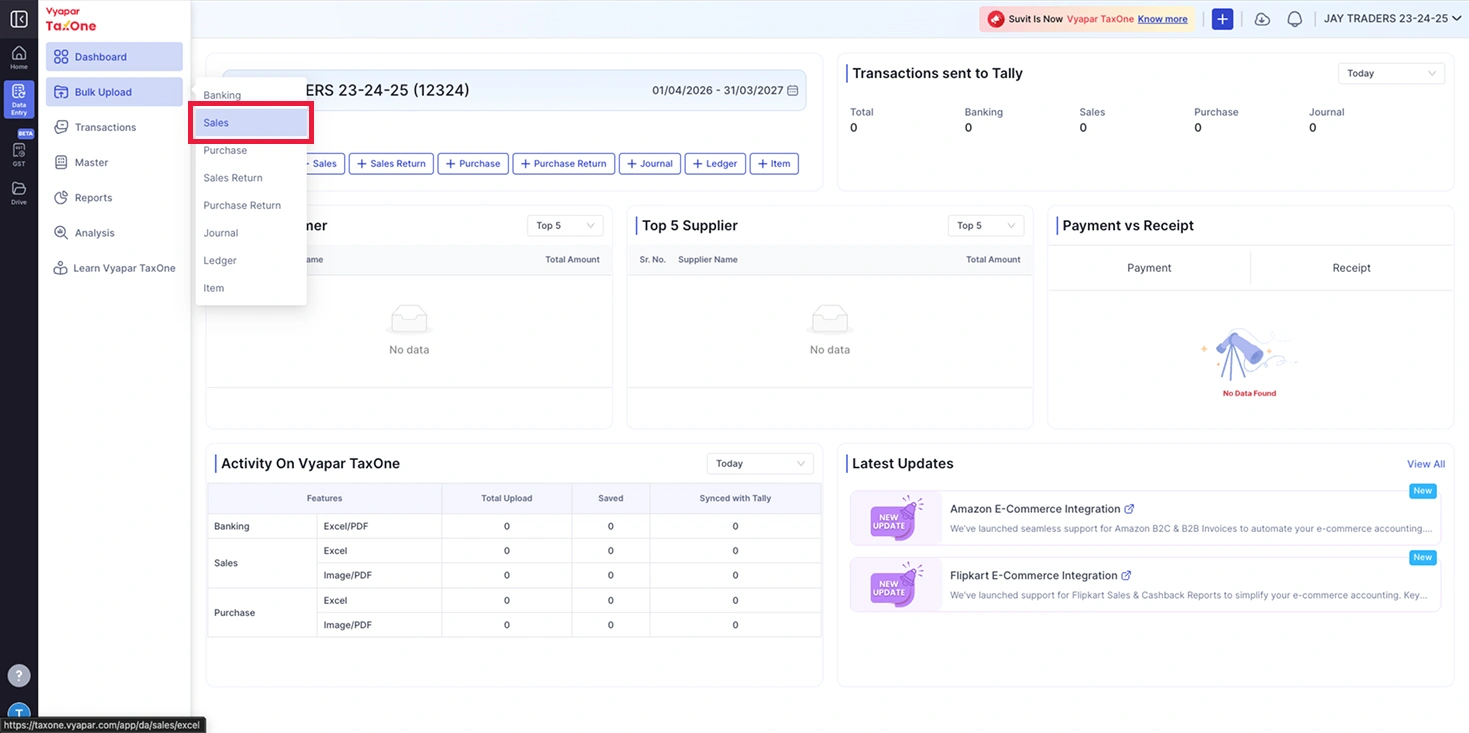
- In the left sidebar, click on Data Entry icon - Bulk Upload.
- From the dropdown menu, select "Sales".
- You will land on the Sales (Excel) listing page.
Step 2: Click "View GSTR1 Json/Excel"
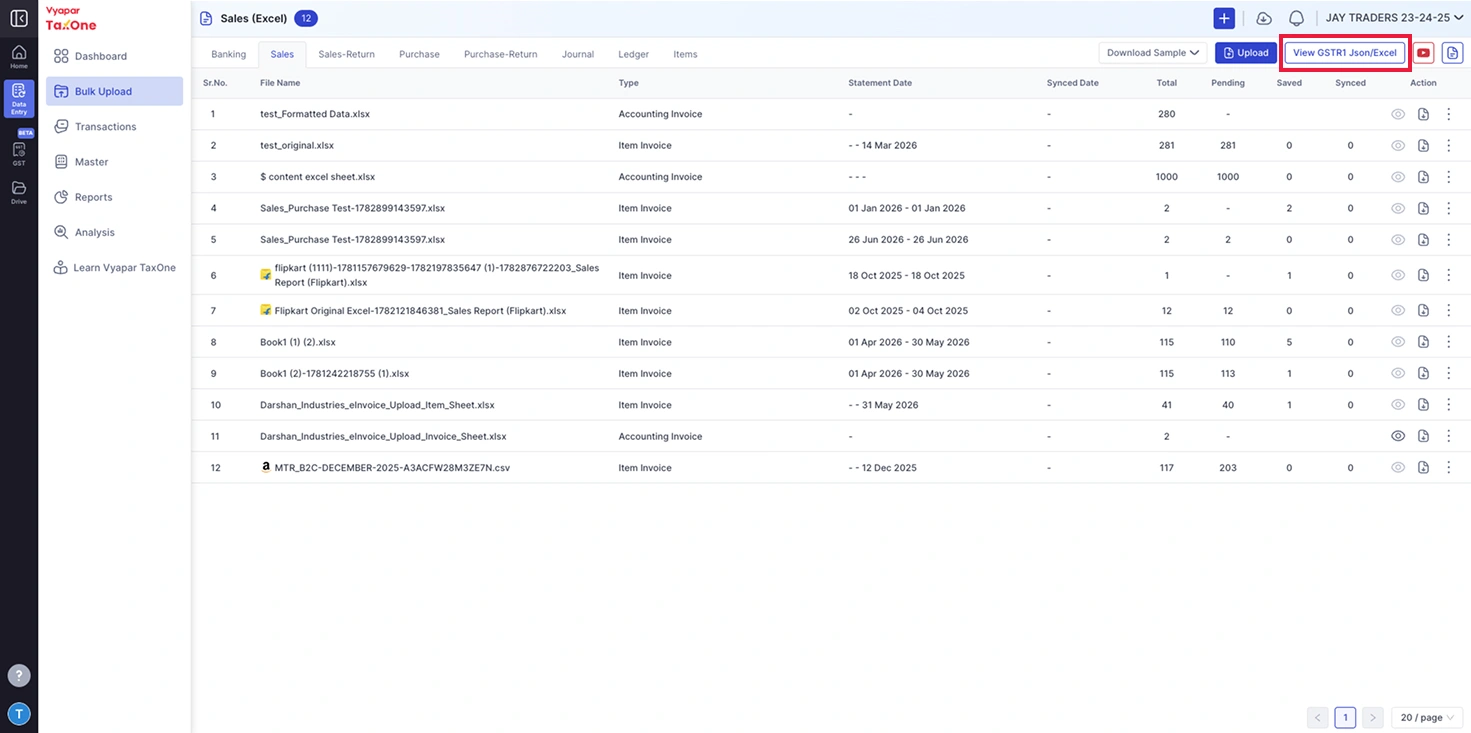
- On the top-right corner of the Sales listing page, click the "View GSTR1 Json/Excel" button.
- This button is located next to the "Upload" button.
- A popup window titled "View GSTR1 Json/Excel" will appear.
Step 3: Select the Filing Period
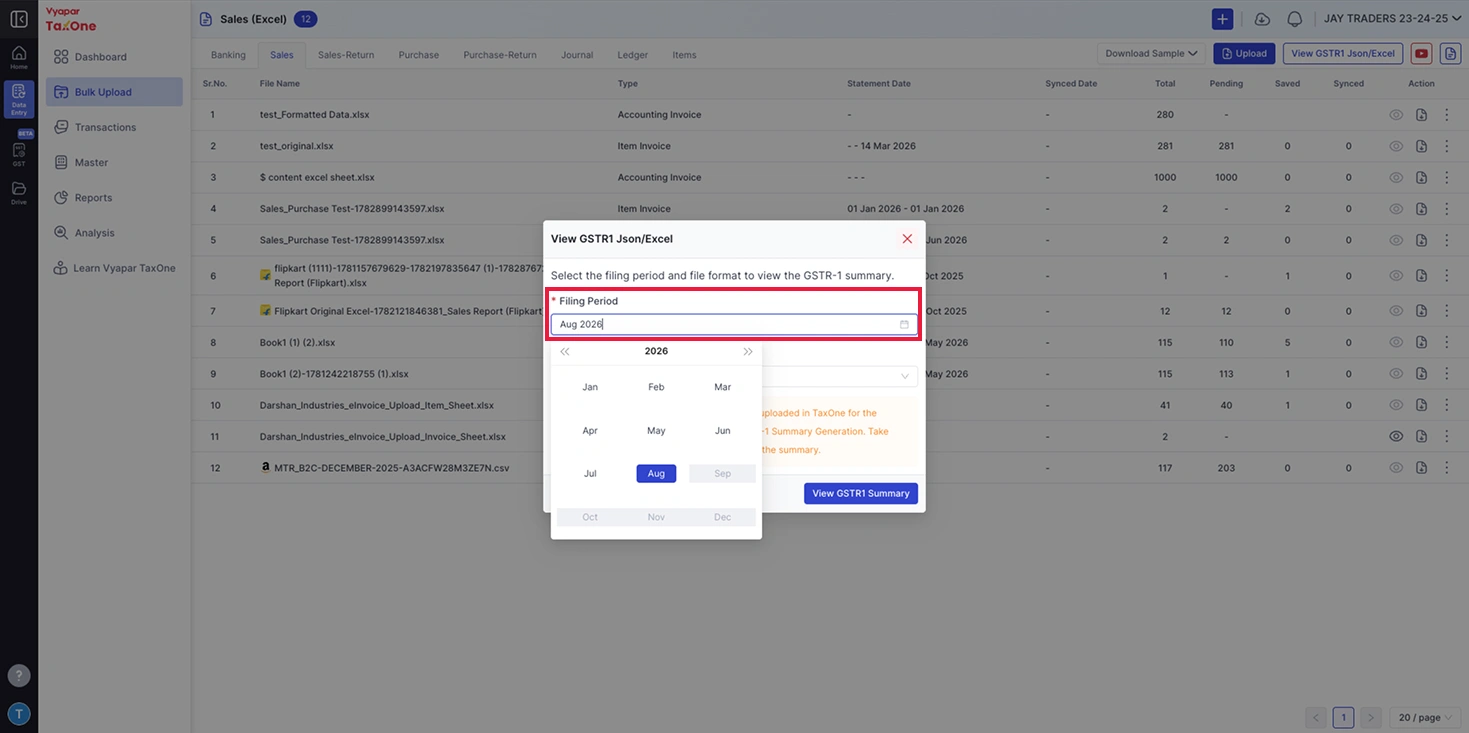
- In the popup, click on the "Filing Period" field.
- A month picker will appear showing all 12 months of the year.
- Use the left/right arrows at the top to navigate between years.
- Select the month for which you want to generate the GSTR-1 report (e.g., Aug 2026).
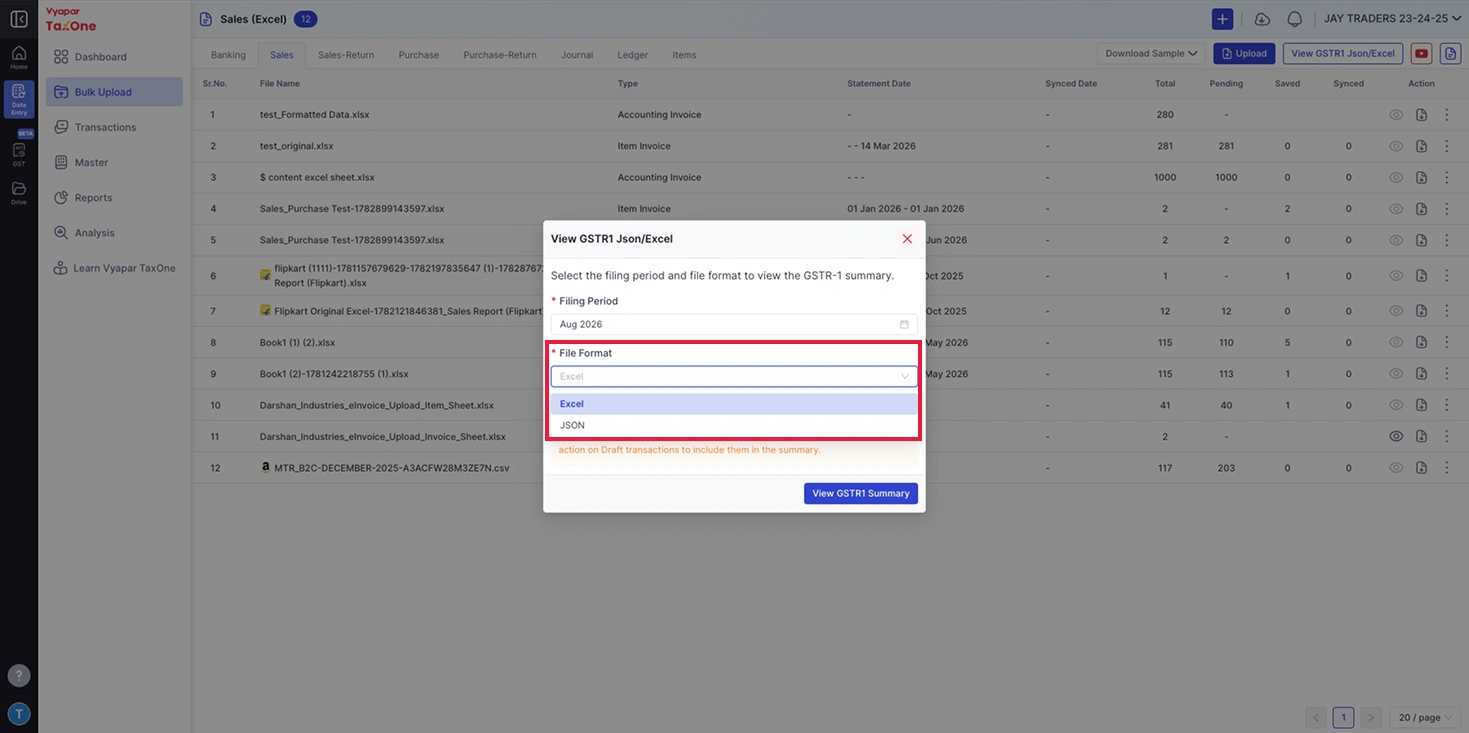
- Click on the "File Format" dropdown.
- Choose your download format:
- Excel - For reviewing data, sharing with clients, or keeping records.
- JSON - For uploading directly to the GST Portal (gst.gov.in).
⚠️ Note: Only Saved & Tally Synced transactions uploaded in TaxOne for the selected Filing Period are considered for GSTR-1 Summary Generation. Take action on Draft transactions to include them in the summary.
Step 5: Click "View GSTR1 Summary"
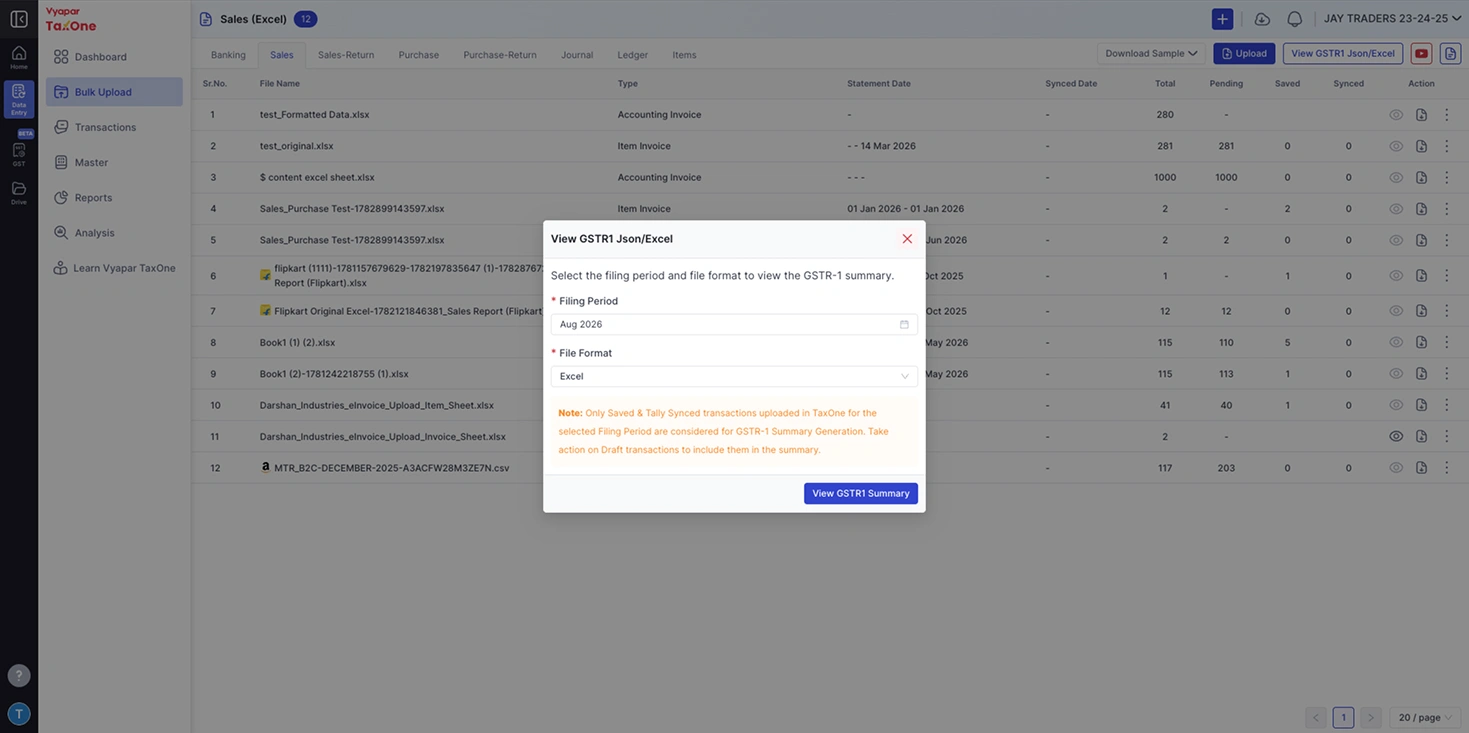
- After selecting the Filing Period and File Format, click the "View GSTR1 Summary" button (blue button at the bottom-right of the popup).
- TaxOne will compile your sales data and generate the GSTR-1 report.
Step 6: Summary Generated Successfully - Auto Download
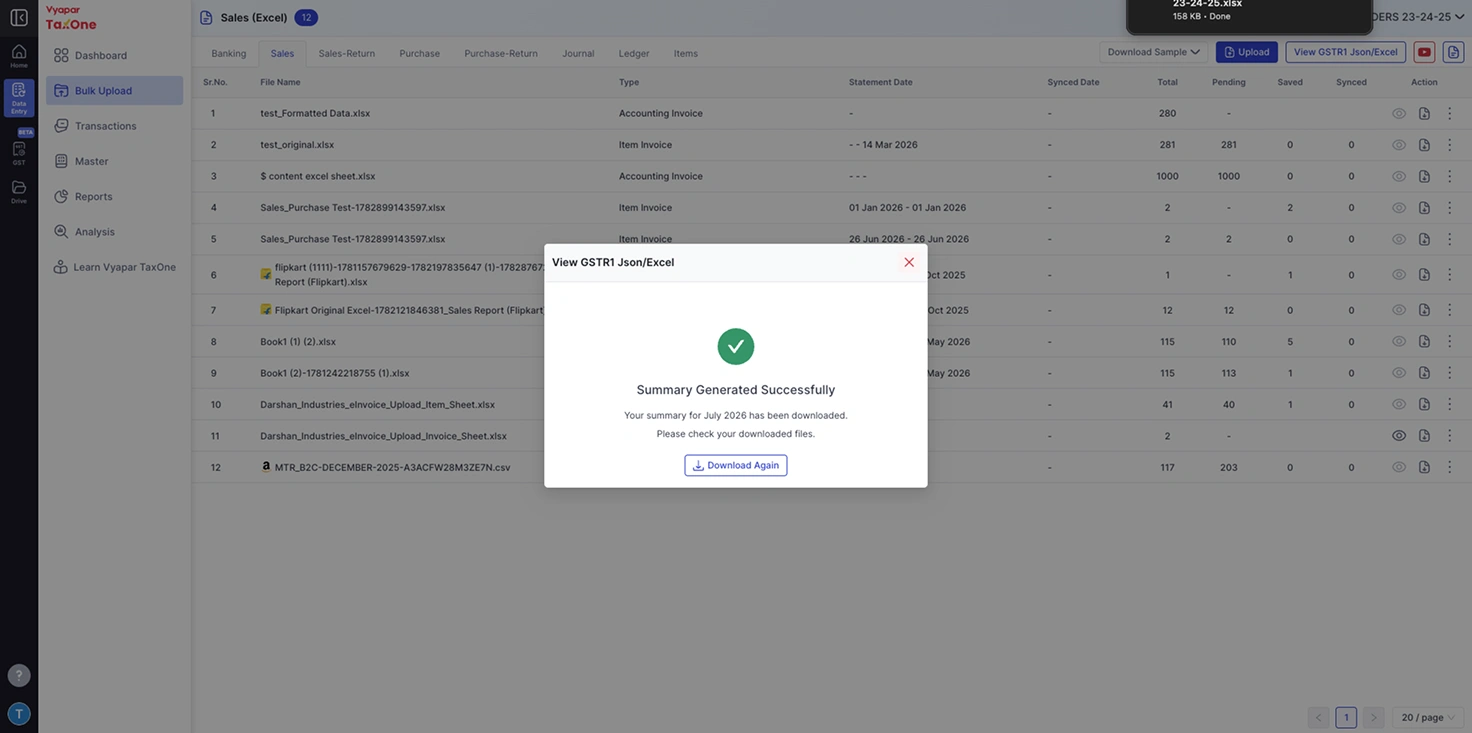
- Once the report is generated, you will see a success screen with:
- A green checkmark icon
- The message: "Summary Generated Successfully"
- Details: "Your summary for [Month] [Year] has been downloaded. Please check your downloaded files."
- The file is automatically downloaded to your system. You can see the download notification in your browser (e.g., "23-24-25.xlsx, 158 KB - Done").
Step 7: Download Again (Optional)
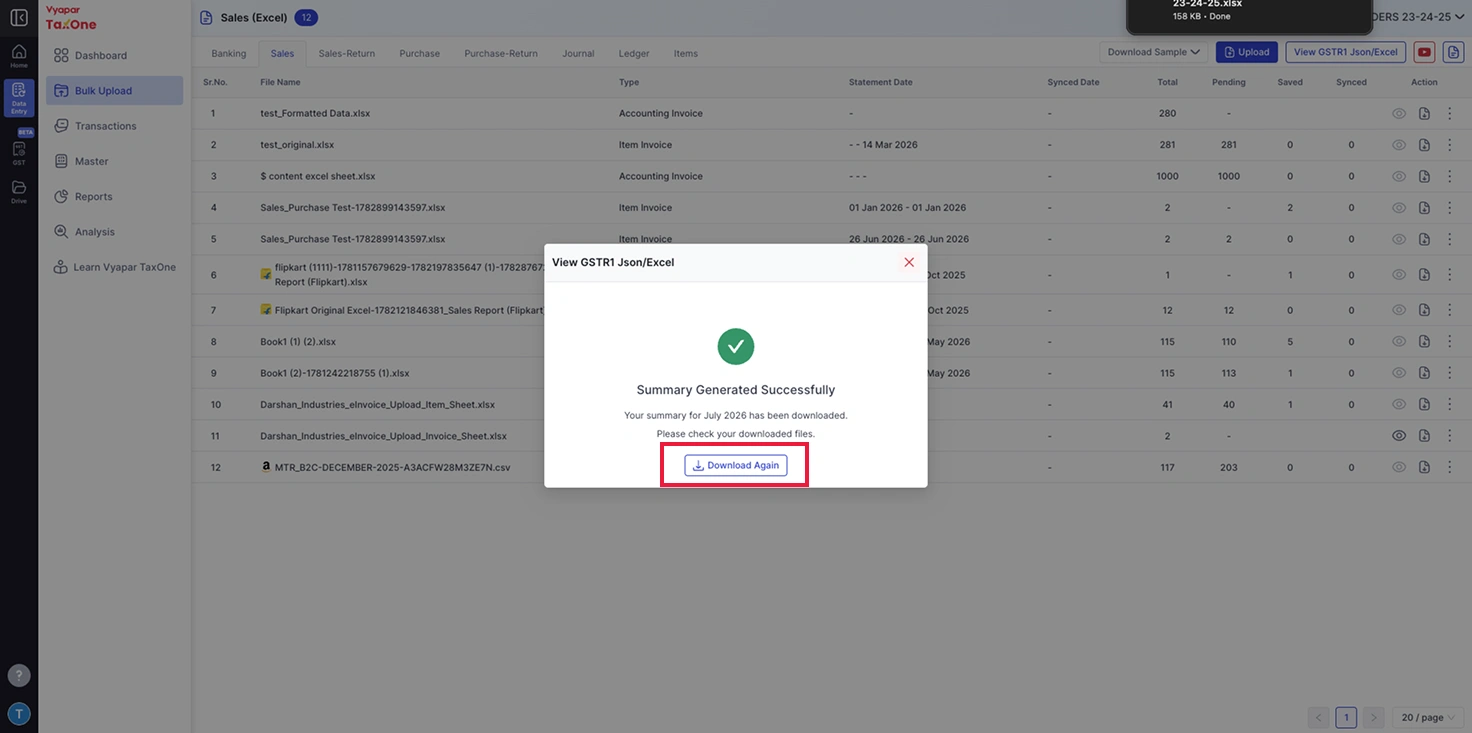
- If you need the file again - or if the auto-download didn't trigger - click the "Download Again" button on the success screen.
- Click the X (close) button to close the popup and return to the Sales listing.
Key Benefits
- JSON for GST Portal - The JSON file follows the GST Portal's standard GSTR-1 format. Upload it directly to gst.gov.in without any modification.
- Excel for Review - The Excel file is for reference, review, and sharing with clients.
- B2C Data Included - B2C transaction data is already included in the GSTR-1 report. A separate B2C Excel download is not required.
- Re-download Anytime - Previously generated reports can be re-downloaded using the "Download Again" button.
- Draft Transaction Alert - TaxOne warns you if Draft transactions exist so you can save and sync them before generating the report.
👋 You May Find This Useful:
- Learn how to fetch GSTR 2A/2B data from the GST Portal Learn more.
- Learn how to push Purchase data to Tally Learn more.
