 Is Now Vyapar TaxOne | Same Trust, New Name!
 AI Weapon for Financial Soldiers



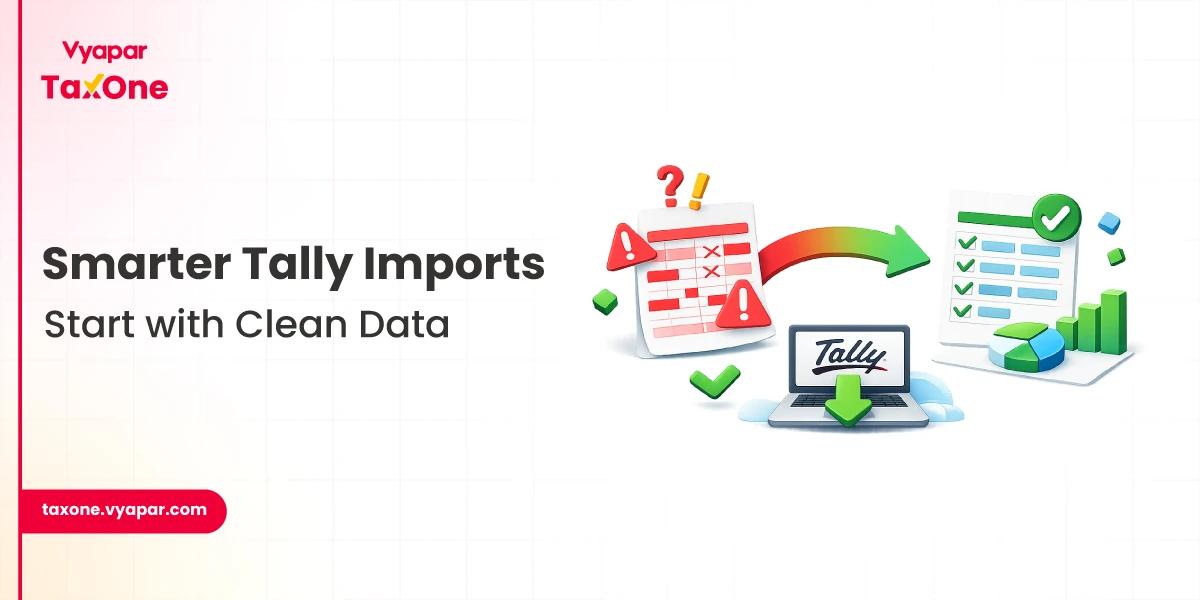
In the accounting world, transferring data from Excel spreadsheets into Tally has traditionally involved converting Excel files into XML format.
This process ensures data complies with Tally’s import requirements, enabling accurate ledger and voucher recording. However, Excel to XML conversion is often time-consuming and technically challenging for many accountants.
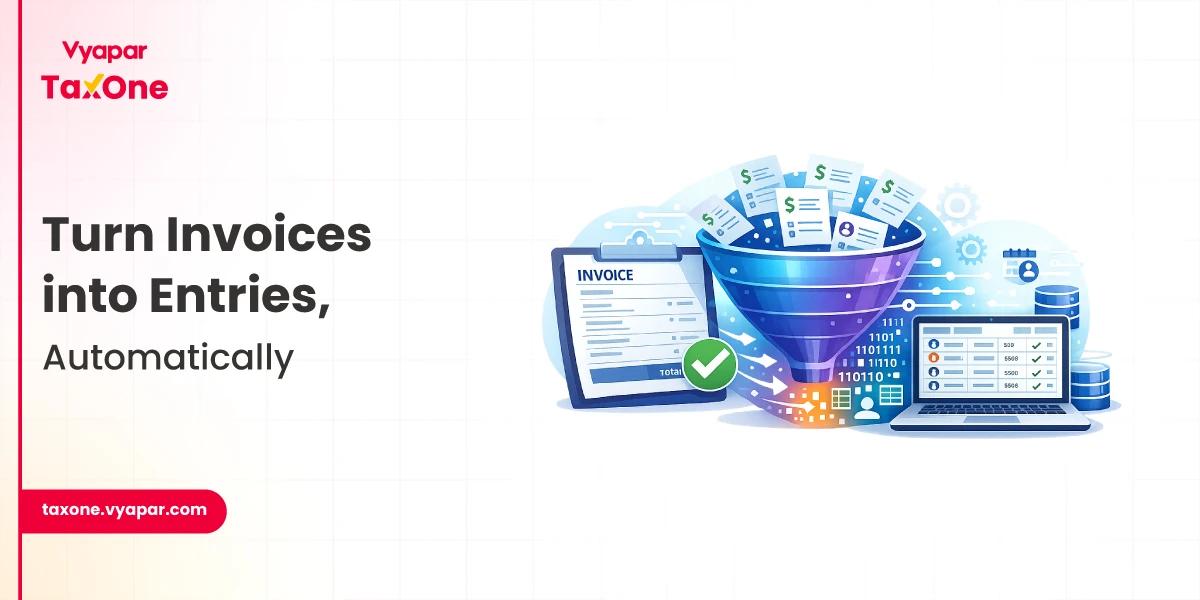
Thankfully, manual Excel to XML conversion is no longer necessary with advancing technology. Modern tools like Vyapar TaxOne allow accountants to send Excel data to Tally directly without intermediate steps.
This saves considerable time, reduces errors, and streamlines accounting workflows by automating the integration process.
This guide explores the traditional Excel to Tally XML conversion method, outlines its challenges, and highlights how Vyapar TaxOne revolutionizes this process by enabling direct Excel-to-Tally imports for enhanced efficiency and accuracy.
As a versatile accounting software, Tally requires data to be imported in a specific XML structure. This format ensures:
Converting Excel to XML has been the standard method to meet these requirements, especially for bulk data imports.
Despite its necessity, manual Excel to XML conversion poses several challenges for accountants:
These limitations can delay critical accounting processes and increase operational overhead.
Vyapar TaxOne is an AI-powered, cloud-based accounting tool designed for modern accountants. It eliminates the cumbersome step of converting Excel files to XML by directly sending Excel data into Tally software in the appropriate format. It supports varied accounting data types such as banking transactions, sales, purchase entries, vouchers, etc.
Using Vyapar TaxOne for Excel to Tally data transfer offers tangible advantages:
A CA firm can slash the time needed to import monthly sales data from Excel to Tally from hours to minutes by utilizing Vyapar TaxOne’s direct integration. Errors common in manual XML conversion, such as mismatched ledger codes or incorrect voucher types, are proactively prevented.
Although once essential, the traditional Excel to Tally XML conversion presents notable operational challenges for today’s accountants. Vyapar TaxOne addresses these pain points by allowing direct Excel-to-Tally data import, bypassing XML conversion altogether.
This AI-driven solution not only enhances efficiency but also minimizes errors and simplifies accounting workflows. Accountants are encouraged to adopt Vyapar TaxOne to modernize their data integration processes, stay ahead of industry challenges, and unlock new levels of productivity and accuracy.
Try Vyapar TaxOne today to experience seamless Excel to Tally integration without the hassle of XML conversion.
A1: No, with Vyapar TaxOne, you can directly send your Excel data to Tally without needing manual XML conversion. Vyapar TaxOne automates the data mapping and import process, saving time and minimizing errors.
A2: Vyapar TaxOne supports multiple accounting data types, including banking transactions, sales, purchase vouchers, payment details, ecommerce data, stock items, and GST information, making it a versatile solution for all your accounting needs.
A3: Vyapar TaxOne includes real-time validation and error-checking features that ensure data is correctly mapped and imported into Tally, thus guaranteeing high accuracy and preventing common manual entry mistakes.
A4: Yes, Vyapar TaxOne works seamlessly with popular Tally versions, including Tally ERP 9 and the latest TallyPrime, enabling smooth integration regardless of your current Tally software.
A5: Vyapar TaxOne allows you to customize and save mapping templates between your Excel columns and Tally fields, providing flexibility for different business requirements and recurring imports.
A6: No, Vyapar TaxOne doesn't directly support XML files. Instead, it lets you upload Excel or PDF files and automatically maps the data for direct import into Tally, avoiding manually converting Excel to XML.

Get started today and simplify your accounting process!